Category Page
The BigCommerce default category has a breadcrumb, product list items, and filters. For more information on product categories, please read the BigCommerce docs.
Header
Hero Image
Category Header images* should be set to 1770px wide ✕ 354px tall (12:5 aspect ratio) To Upload a new or change a Category Hero Image, you’ll need to be in the category editor menu. To access it:
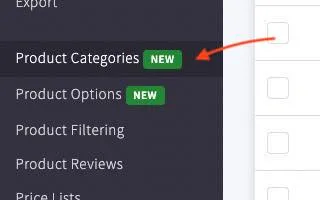
- In Bigcommerce, select the
Productstab from the left side navigation → then selectProduct Categories - From this page, select the Category you wish to edit
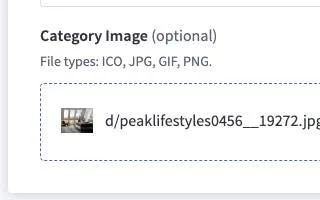
- In the Category Details Box → Scroll down till you reach the
Category Image (optional)- Here, you can upload a new or remove the Category Header image*
** Due to current BigCommerce limitations, file sizes need to be >1mb*
Description
The Editor does function and any color, indentation, font size, or any other styling changes you make will show up on the page. The Default styling for this section is paragraph font size with no other options selected. To access the Category Description:
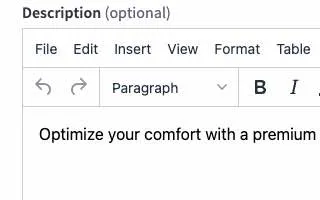
- Go to the
Product Categoriestab → and select the category - Inside the Category Details Box → scroll to the
Description (optional)section
Navigation
Filters
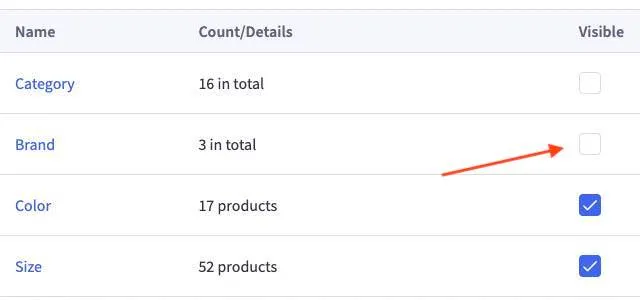
Product filters can be toggled on or off. The options are based on product variants and custom fields. The menu can be found under the Products tab → Product Filtering
Category specific Filters
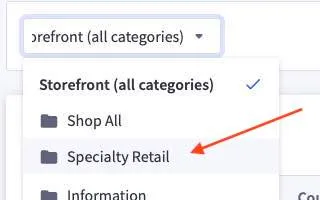
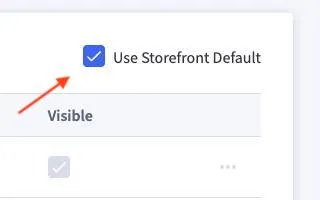
Not only can you toggle each filter on or off, you can change it individually per category.
Inisde Product Filtering → open the Dropdown Menu at the top of the page → and select the Category. Uncheck ☑ Use Storefront Default to begin editing.
Subcategory Filters
Subcategory Filters can be added using custom fields. Specifically, a product needs the custom field “type” (all lower-case) on it for it to be added.
Warranty Icons Widget
The warranty Icons Widget is the same one as controlled from the product page. You can find instructions on how to edit it here.
Product Cards
Hover Image
When hovering over the product card image, a second “lifestyle” image will animate in. The image used is the second image in the list of product images on the products page in BigCommerce. If there is only one image in the list, no animation will occur and the product card image will remain the same.
Variant Images
The product card will change to match the swatch if there is a Variant Image in place for it. *Note: Due to the amount of variants under the same color (sizing, etc.), the variant image used will be the first one with a matching color. To avoid issues and save load times, use the same image for all variants with the same color. If a color does not have a Variant Image, the default Main Image will be used. Product Variant Images can be found by:
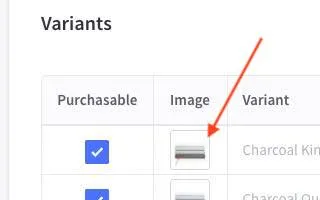
- Go to the
Productstab →View→ then select the product - Under
Product Options→ go toVariants - The Input will be next to the Variant name under the
imagecategory
Tags and Badges
The product card tags are the same that appear on the product pages. A tutorial for how to create them can be found here.
Alternate Category Templates
To change the template of a category page, edit the category in bigcommerce and select a different option under “Template layout file”
Comparison Template
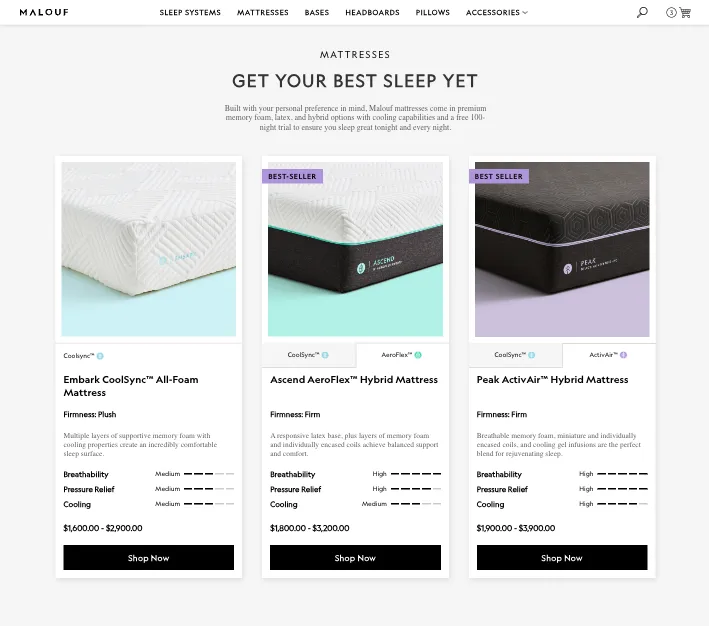
Header
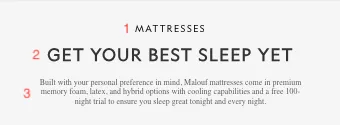
- Category title
- Page builder content
- Category description
Products
The cards on comparison categories are styled based on several custom fields on the products themselves. Cards can be grouped in pairs using the custom field card-group.
The card-group custom field’s value is a set of hyphenated numbers. In the example image above, the Peak ActivAir product has a card-group value of 3-1.
The first number is the order of the card group. This card group is the 3rd product to appear on the category, so the first number is 3. The second number is the priority of the product pair (which should appear first). ActivAir is the primary Peak option, so it’s second number is 1. The Peak CoolSync version has a card-group value of 3-2 since it’s part of the same group, but secondary to the ActivAir version.
Feel free to look through the custom fields on mattress products for more of a visual on how they are set up on a comparison category.
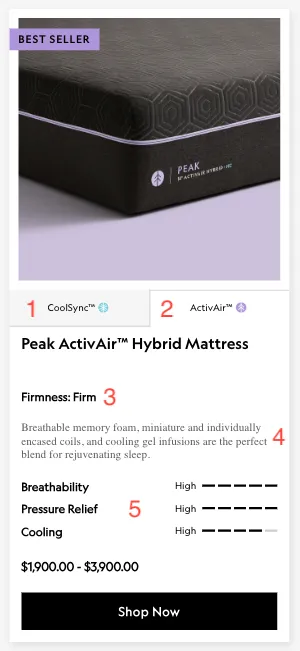
alternate-materialcustom field (example’s value ispeak_CoolSync)materialcustom field (example’s value ispeak_ActivAir)Firmnesscustom field (example’s value isFirm)overviewcustom field (value containing paragraph text)scale-Breathabilitycustom field, all scale fields start withscale-and are followed by the name of the scale item. The values for these fields are a number from 1-5. In this case, the example’s value forscale-Breathabilityis5.
Strapi Content
For more dynamic content per category, we have created Strapi collections in a separate CMS. If you need a login, please contact the Web department.
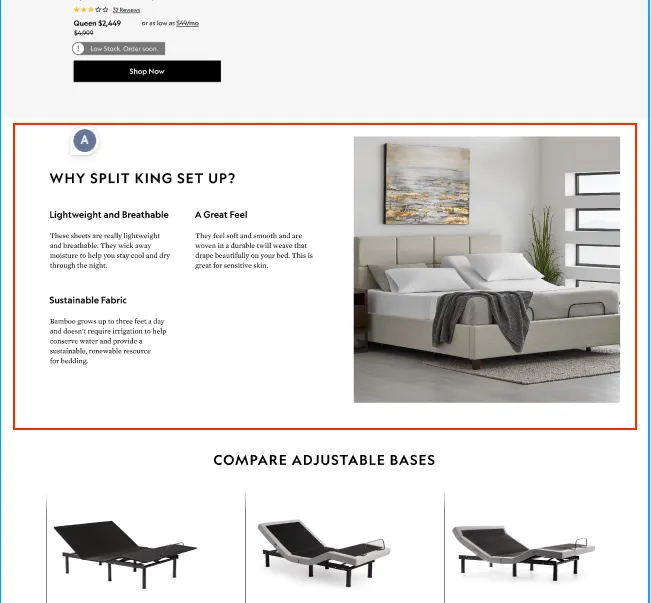
On the live site, Strapi category content will look something like the image below.
Locate Strapi Collection
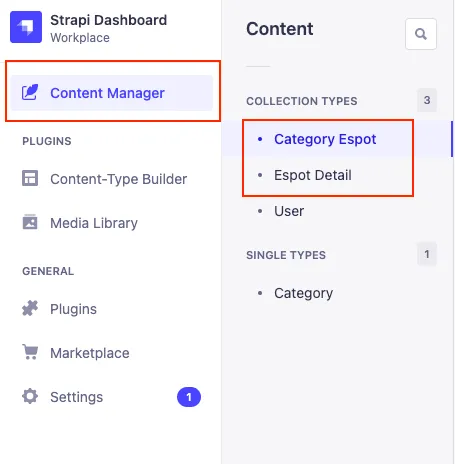
To add the text and images, the category content can be found in Content Manager > Collection Types of an external CMS. For the categories, you will be using mainly “Category Espot”. When additional fields are required, “Espot Detail” will also be used.
Create New Espot
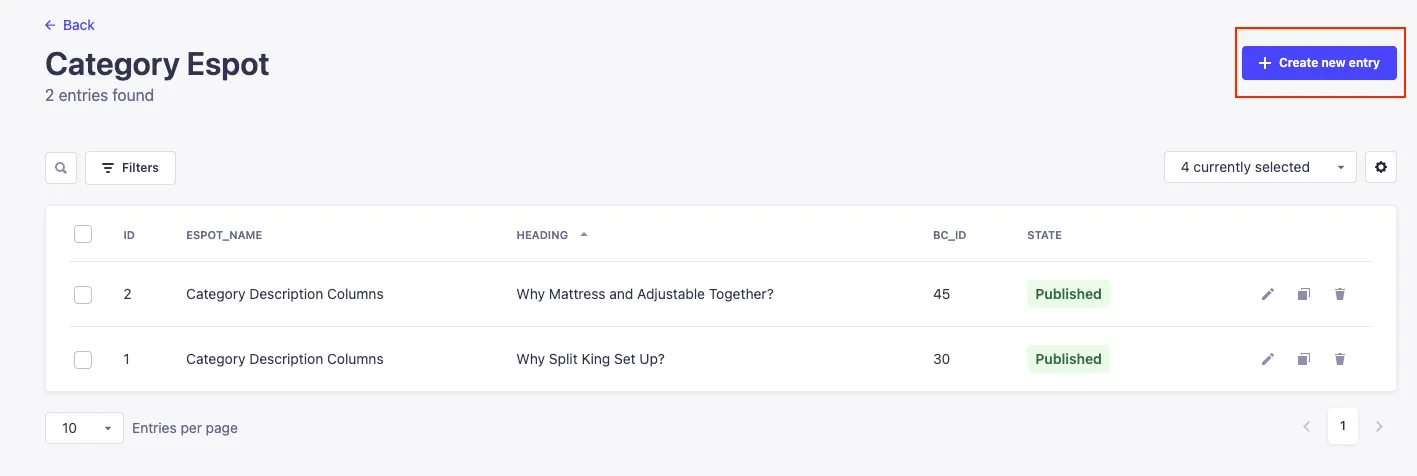
To create a new espot, select “Create new entry” in the top right corner of the screen. Any existing content can also be edited or deleted by clicking on the pen or trash icons.
On the “Create an entry” page you will have several fields for content.
Here is a complete list of input fields, expected values, and a brief description for each. You can learn more by reading below or by following the link in the table.
| Field Name | Expected Value | Description |
|---|---|---|
bc_id* | Category or Product ID | Displays content on the correct product or category page, ids must match |
espot_name* | Name | Espot name for styling purposes |
display_order* | Positive number | Determines order of Strapi sections on the page |
text_alignment | Center/Left/Right | Sets text alignment |
heading | Text | Top level heading for the section |
description | Text description | Paragraph, list, or other HTML |
subheading | Text | Additional heading if heading |
extended_description | Text | Additional Paragraph, list, or other HTML if needed |
button_link | URL | Link for button |
button_text | Text | Button CTA |
visible* | True | Hide/shows content on the page |
media | Image or video | Media upload |
video_autoplay | True | Autoplays video if value is true |
youtube_embed | Youtube video url | Plays youtube video in modal, uses media for default image |
custom_video | Video url | Plays mp4 video in modal custom modal |
relation | Select box | Attach related content entries |
background_color | True | Sets background color to gray if true |
Select Espot Name | Master List
In order to style each collection accordingly, we have created indivdual espot names. For available category espot designs you will find the names, descriptions, and visual examples below.
| Espot Name | Fields Used | Example | Relations and Other Fields Used |
|---|---|---|---|
Category Description Columns | text_alignmentheadingmediavideo_autoplay | | Espot Details - HeadingDescription |
Add Relations
If you need more content fields, you can use Strapi Relations to attach additional content to the collection type. The Relation field is on the right-hand menu when you create/edit an entry.
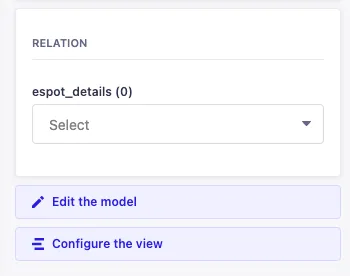
For the category page, it currently only uses the “Espot_details” collection for more content. “Espot Detail” includes a heading and description field. You can create as many “Espot Detail” entries and add them to the “Category Espot”.
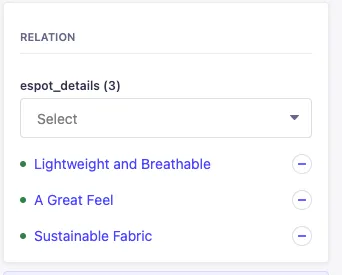
Let us know if you do not have enough fields, we can easily add more.
Save & Publish
In the upper right hand corner you can save and publish the collection entry. If you won’t want the content to go live, simply save and it will be there for you later.
Widgets
Category Mattress Material Widget
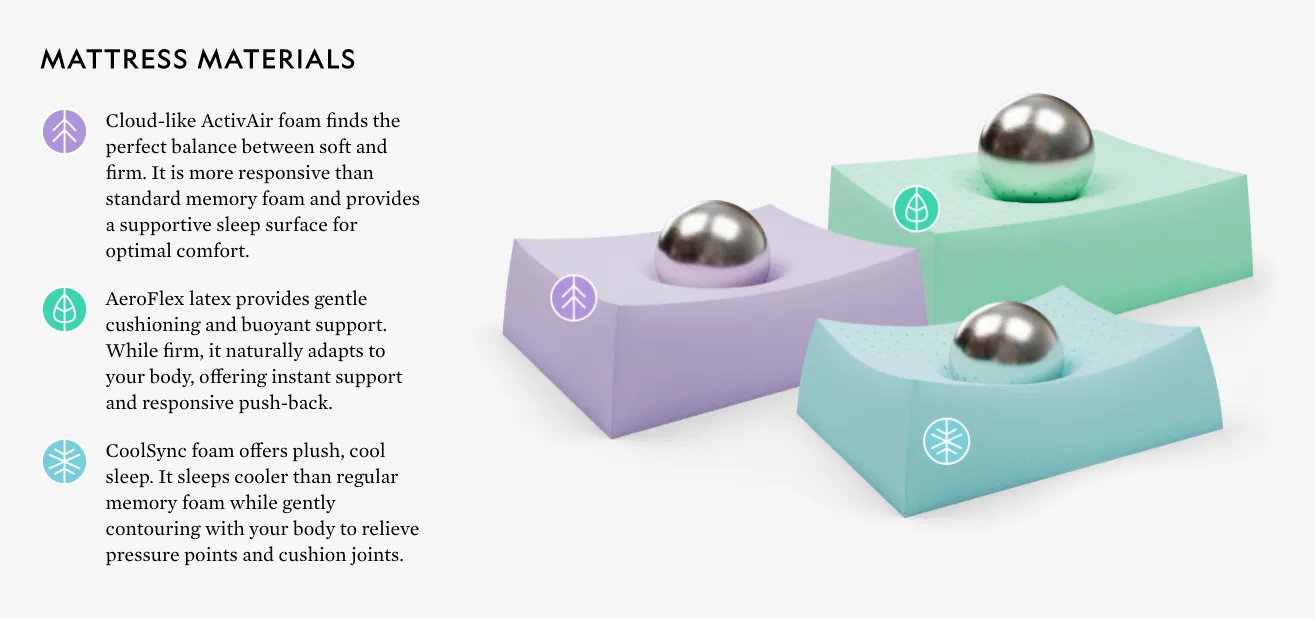
This global widget will show on the pillows category page, after the product cards.
Category FAQ’s
The Category FAQ section is a widget that you can access in the PageBuilder in BigCommerce. There is one for each category and subcategory. If a new category/subcategory is created and an FAQ section is needed, reach out to the Dev’s to put in a new region for it.
In the widget settings, you can add new FAQ’s with the + button next to ▼ CATEGORY-FAQS and remove them by clicking on the … next to the FAQ in the list → and selecting Delete. You can change the order of the questions as well with the ⋮⋮ and dragging it to the desired spot. To change the question/answer, select the FAQ from the ▼ category-faqs list. Under the ▼ FAQ ... section, use the input boxes to add the question/answer to it’s corresponding field. If you need to change the font-size, background color, or any other settings, click on the … next to < category-faqs at the top and choose settings.
To access the widget:
- In BigCommerce go to Channel Manager → Storefronts →
Edit theme. - Once you’re in the Page Builder, Select
widget templatesfrom the page dropdown in the top-left corner. - From there, Under the Category FAQ’s section will be a list of category FAQ’s with their corresponding category. Select one to edit it with the Page Builder tab on the left.
- If you’d like to separate paragraphs in the content, just insert a
</p><p>between the paragraphs. Since the whole block is already wrapped in tags, this is all you need.
Category SEO Blocks
The SEO block is another widget that can be found in the BigCommerce PageBuilder. Since each Category has its own SEO block, in the widget templates page of PageBuilder, you can find them under their corresponding category in the Category FAQ’s and SEO block section.
Path: Channel Manager → Storefronts section → Edit theme → Page selector dropdown (top left corner) → widget templates → Category FAQ’s and SEO block section

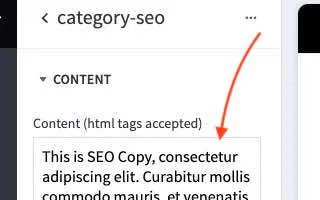
The SEO content can be changed with the Content input in PageBuilder. This input does accept html tags but please test them or ask the Devs for advice if you need. You can add paragraph breaks to your section with “. To change how many sentances are visible before the cutoff, use the # of lines above the fold input (default is 3). If you do not wish for any to be hidden, use the BigCommerce default text widget instead for better accessiblility. Styles such as color, font-size, and padding can be found under the Design ▼ tab.