Custom Fields
We use custom fields to modify, group, or simply display additional information on a product. If you are new to custom fields, please refer to the BigCommerce documentation.
The documentation on this page will address specific custom fields we’ve created, and what they’re being used for on Malouf Home.
Here is a complete list of all available Custom Fields, expected values, and a brief description for each. You can learn more by reading below or by following the link in the table.
| Custom Field Name*: | Custom Field Value(s): | Description |
|---|---|---|
adjustable-compatible | true | Display the adjustable base compatible section for on a products page. |
base-ways | true | Enables the “one base, three ways” section for adjustable bases. |
bundleID | Bundled Product ID | Adds product to the bundled section. Requires use of either bundle_, bundle_$, or bundle_%. |
bundle_ | true | Bundled product w/o any promotion. |
bundle_$ | The amount discounted | Bundled product w/ discount promotion. |
bundle_% | The percentage discounted | Bundled product w/ percentage discount promotion. |
bundleALT | The alternate decline text | Use an alternate decline message. |
dimensions-... | Product dimensions | Enables the dimensions component and displays the value. (can be used more than once) |
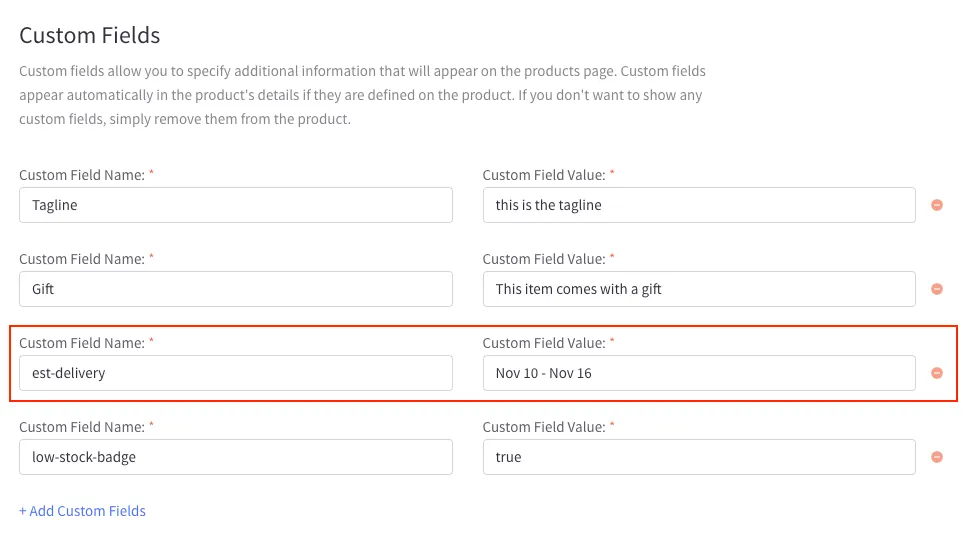
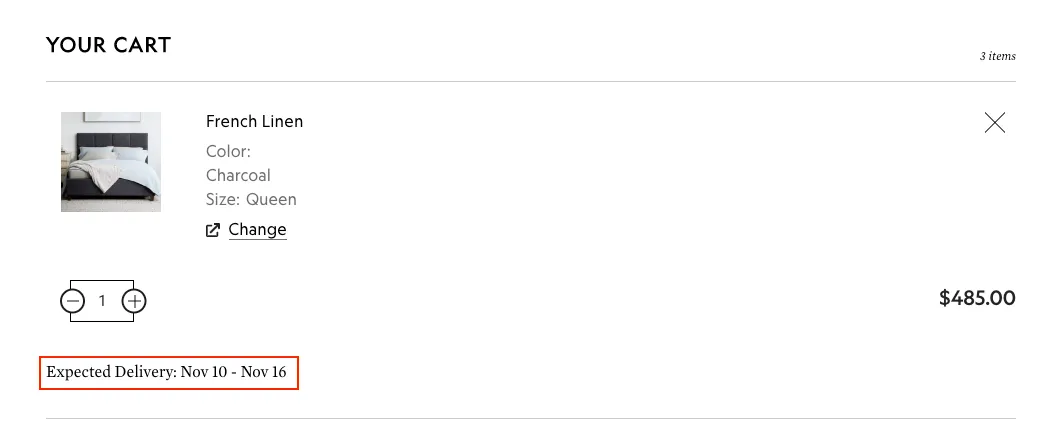
est-delivery | Estimated delivery dates | Enable est-delivery date section on the cart page. |
feature | Feature Tag text | Add a feature tag to a product. |
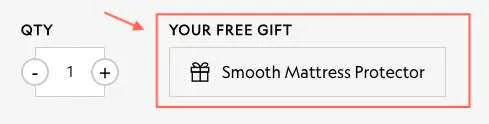
gift | Name of the Product being gifted | Show ‘Free Gift’ product when promotion is active. |
low-stock-badge | true | Enable the low stock warning badge on product page and cart. |
material | Product Material name | Define product material to be used in components. |
tag | Custom Tag text | Add custom tags to a product. |
tag-primary | Primary Tag text | Add a primary tag to a product. |
tag-secondary | Secondary Tag text | Add a secondary tag to a product. |
tagline | Tagline text | Add the product tagline. |
type | product subcategory | Allow the product to be filtered by subcategory. |
videoID | cloudlfare video id (request account or send task to web dev team) | Adds an inline video to the product gallery |
warning | prop65 | Turn on the Prop65 Warning for this product. |
whats-inside | Image file name | “what’s included” section on sheet product pages. |
promotion | Promotion Text | Adds a small banner including promo text to product cards and product pages. |
promotion-description | Additional text to describe promotion (only on PDP) | Adds promo description to product pages. |
promotion-description-icon | Stylized image/icon for promotion | Adds icon before promo description on product pages. |
overview | paragraph text | adds description text to product cards on categories using the comparison template |
card-group | 3-1 | sets the order and priority of a card group on categories using the comparison template |
alternate-material | peak-CoolSync | if the product has an alternate material like CoolSync, AeroFlex, etc. Used on comparison template cards |
scale-... | number 1 through 5 | scale items appear on comparison template cards |
ALL Custom Field Names must must be copied exactly how they are spelled here. Most need to be input lower case, but there are a few exceptions. Please test your changes.
Product Details
Adjustable Base Compatible
adjustable-compatible
This custom field enables the Adjustable Base Compatible section on a products page. Set the custom field value to true to enable. Usually active on all all headboards & bases.
One Base, Three Ways
base-ways
This custom field enables the ”One Base, Three Ways” section on adjustable base pages. Set the custom field value to true to enable.
Product Dimensions
dimensions-...
Displays the Product Dimensions component if present. This customfield can be used more than once and is necessary to do so if a product has variant sizing. For each dimensions- tag, a new section will be created under the dropdown. There are two main parts to each section: The Name of the section and the values that follow.
Dimension Name
The name of the section is pulled from what comes after the dimensions-. This should be set to a Variant size. For ease of use and consitency, you can copy the name of the option that alters the size. For example, if we had the customfield name dimensions-King, then the name of that section of data would be King. Spaces are allowed in the name.
Dimension Values
The Customfield value is a little more involved. Inside this section, there are more subsections; a new one for each new set of data (height, width, etc.). The component will pull the data down and slice it up where it needs to. I’ll give an example of a working customfield value and then break it down.
Customfield Value ex:
h=31.7",w=77.9",d=3.9"*
The way the component works is it first splits the data up by commas ( , ). Each comma represents the start of a new line in the component and a new subsection of data. Once the data is split appart and seperated into it’s own subsection, it then splits each of these new bits again by the equals sign ( = ). What we are left with is a table (of sorts) of seperated data that would look something like this:
| King | ||
|---|---|---|
| Height: | ━━━━━━━━ | 31.7” |
| Width: | ━━━━━━━━ | 77.9” |
| Depth: | ━━━━━━━━ | 3.9” |
Technically, you could put whatever you want in the data, as long as it was seperted by the commas ( , ) and the equals sign ( = ). An example of this would be: Pocket Depth:=14in.,Weight:=2lbs. This would appear in the component as:
| Pocket Depth: | ━━━━━━━━ | 14in. |
| Weight: | ━━━━━━━━ | 2lbs |
Product Tagline
tagline
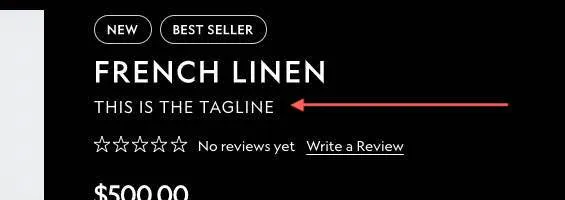
Used for creating the Product tagline that sits below the Product name (not the description). Usually a short, one sentance blurb about the product. Add the Products Tagline to the Custom Field Value.
Product Material
material
Define the product material. Used in certain components to render sections on the product page (ex: the mattress material section). Custom Field value needs to be lowercase and use underscores (”_”) instead of spaces. Ex: ascend_aeroflex.
What’s Included
whats-inside

Controls the ”What’s Included” section on sheet product pages under the Product Details tab. The custom field value is the name of the file uploaded to the Image Manager. Replace all underscores (”_”) and spaces with dashes (”-”) and include the file name.
Ex: linen-weave-cotton.jpg
Product Carousel Videos
video
Allows you to add videos to the product gallery that aren’t from Youtube and that have the custom play-inline functionality. Enter the URL of the video into the “value” field to add a video. Multiple video tags are allowed.
Custom Badges
For custom badges with specific text, we have created fields to use on the product pages & cart:
Low stock badge
low-stock-badge
An example of the low stock badge input can be seen below.
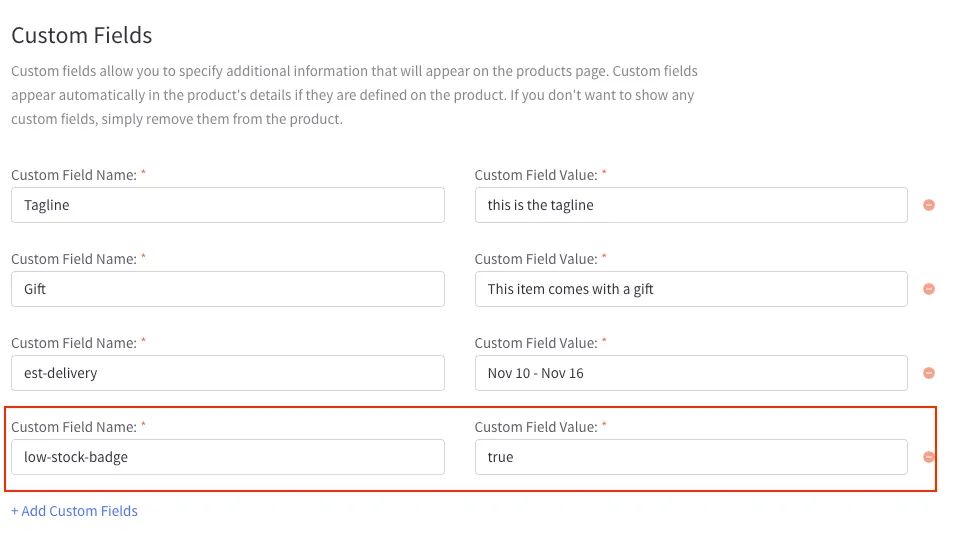
When added to the product, the low stock badge will appear in the cart.
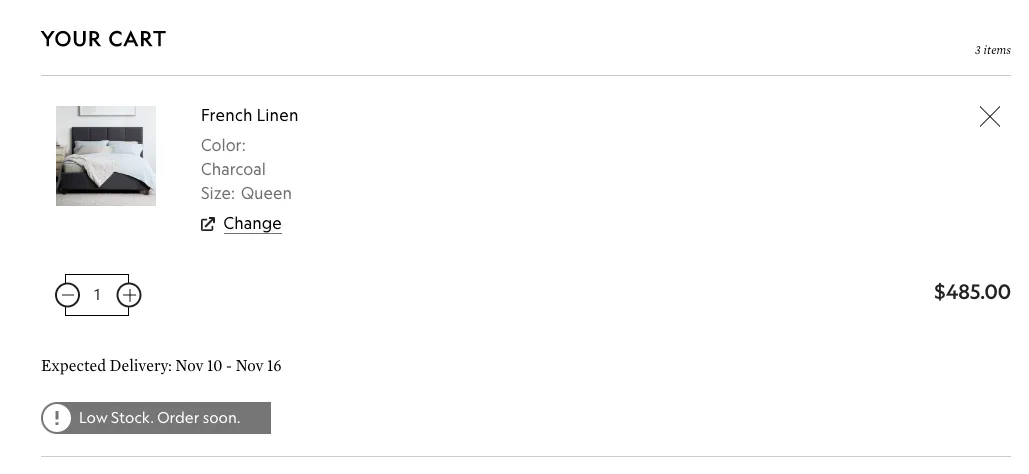
There is also a low stock badge that will trigger on the product page when inventory tracking is turned on at a product or variant level. You can learn more about inventory tracking in the BigCommerce docs.
Custom Tags
tag,tag-primary,tag-secondary & feature
Used for entering in custom tags to be shown on the product. The text for the tag will be whatever is inputed into the Custom Field Value. Multiple tags can be added but a new Custom Field Name with the value of tag must be created for each new tag.
Ex: A product with the tag Custom Field Value of new will show “NEW” in the product tag location.
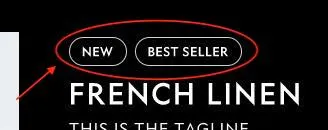
The tag-primary will be shown in color on the product page and be at the top on the product cards. If you need two color tags, please use tag-secondary. Decide which tags are the ones that you want to show off the most and assign the rest as a normal tag. Both the primary and secondary tag have a few predefined values and assigned colors. Any value used in the list below will appear with a unique color. All other values will use the default primary tag color set in the theme settings (this can be used for sales and replace the old promotions banner).
| custom field name | custom field value |
|---|---|
tag-primary, tag-secondary | new |
tag-primary, tag-secondary | best seller |
tag-primary, tag-secondary | selling fast |
tag-primary, tag-secondary | most popular |
tag-primary, tag-secondary | low stock |
tag-primary, tag-secondary | sale |
tag-primary, tag-secondary | free gift |
tag-primary, tag-secondary | sold out |
The feature tag is to be used for specific features. When paired with these, an icon will appear with it. The options are:
| custom field name | custom field value |
|---|---|
feature | cooling |
feature | breathable |
feature | app* |
feature | firm |
feature | plush |
*note: app will turn into “Malouf™ BASE APP” in the translation file.
Estimated Delivery Message
If you want to add a estimated delivery date on cart page, you can use the custom field est-delivery. You can manually enter a date range on the product page of the BigCommerce admin.
The input will look like the below image in the BigCommerce admin.
When added to the product, the estimated delivery message will display for the customer like so.
Free Gift
gift
Enable this field if a Free Gift promotion is running with the current product. The Custom Field Value will be the name of the free product or product category (It’s just a place to put text so technically you could put anything you like). This will show in the Free Gift section and as a tag for the product. The product will automatically be added to the cart if the promotion is set up. BundleID is not needed to add products with this tag.
Bundled Product
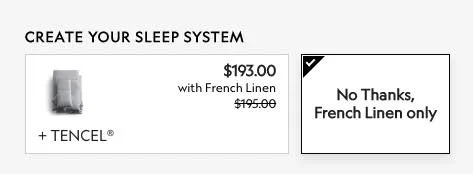
In order to activate the Bundled Product section after creating a Bundled Product promotion, 2 custom fields will have to be used. The bundleID and either the bundle_, bundle_$, or bundle_%.
While this is active, Changing the main products options will change the corresponding options of the bundled product. If the bundled product has options that do not match, the default*options will be used.*Make sure that when you are setting up the product that there are no spelling errors on the option name or it will not match.*If the matching option is out of stock on the bundled product, It will automatically be deselected. If there is only a partial match in the option group (ex: both products having colors as a option but not having all the same colors), the options that do match will be selected and the options that don’t will go to the bundled products default.
Ex: The main product is a mattress and the bundled product are sheets. If the mattress is set to King size, the Sheets will be set to King as well.
*if no default options are set, the first option will be used
bundleID
The Custom Field Value for this is the product ID of the item you want to be bundled.
Ex: adding 156 will add Tencil sheets as the bundled product.
bundle_
Set the Custom Field Value to true. This will enable a bundled product without any promotions running. It is more of a recommendation than an actual bundle. It will not show any discounted price.
bundle_$
Used for dollar amount bundled discounts. Set the Custom Field Value to the amount to be discounted off the bundled product if purchased together.
Ex: 15 would be $15 dollars off the bundled products price.
bundle_%
Used for percentage amount bundled discounts. Set the Custom Field Value to the amount to be discounted off the bundled product if purchased together.
Ex: 10 would be 10% off the bundled products price.
bundleALT
This will display and alternate decline message for the bundled products section. If not set, the default message will be used. HTML elements are accepted. You can add line breaks with <br> and word breaks (for very long words) with <wbr>.
Warnings
Prop65 warning
prop65
Enable this tag on ALL PRODUCTS that fall under the proposition 65 warning. Input the Custom Field Name as warning with Custom Field Value as prop65 to activate.
Promotions
promotion
Displays the Custom Field Value as a small banner in the top right of product cards as well as on the product page above the price. The promotion text should be as short as possible (e.g. “Valentine’s Sale”, “BOGO Pillows”, “25% off Sheets”)