Promotions
Product Promotions
With BigCommerce, we have access to there promotions engine located in the Marketing Tab under “Promotions”. We’ll list a few of the promotions we have configured and what steps you need to take and custom fields (if applicable) need to be activated.
Free Gift with product
With this promotion set up, The customer will recieve the free gift item in their cart when the appropriate item is added.
- In the Promotions section, Click
+ Create ▼and selectWith advanced editor. - Name your promotion and set a Scheduled starting/end date if applicable.
- In the Rules section, select
+ Add ruleand chooseBuy one, get one freefrom the templates. - Rule configuration:
- If the customer
Buys Products*- reaching a
Quantityof1 - Including products
Individual Products[select the “buy one” product**]
- reaching a
- Then Reward
A gift in their cart*Unlimited timesper cart- Include
1[select the “get one free” product**] in the customer’s cart for free.
- If the customer
- Once you have the rule created, click
Add rule to Promotion. - Add more rules or copies of the same rule if necessary.
- Configure the usage limit and Targeting if necessary.
- Hit
Create promotion. - Add the free gift to the product page using the
giftcustom field
** While the Buy's Products and A gift in their cart need to be selected to work, The rest of the inputs are configurable to meet the promotions needs.*
*** Both whole products and product variations can be selected here.*
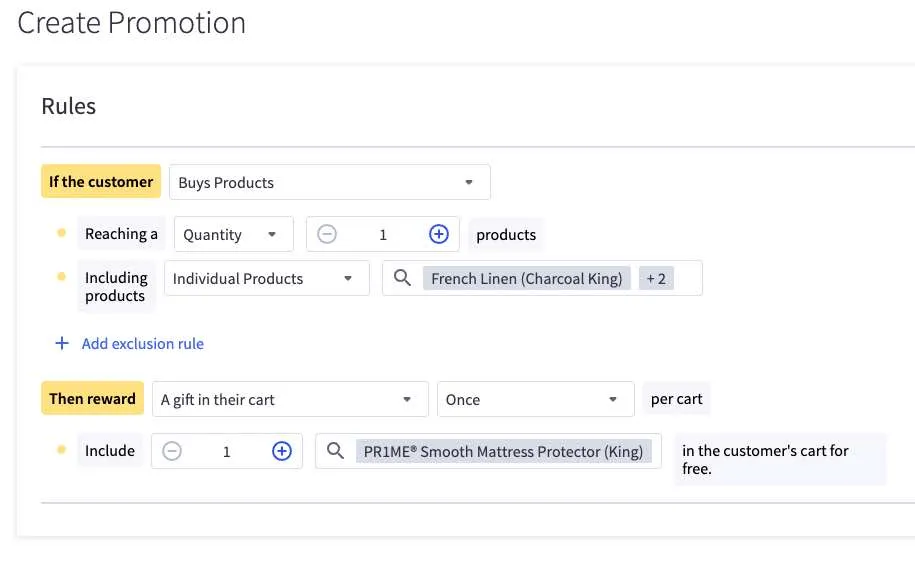
Matching product and gift options
If both the “Buy one” product and the “Get one free” products have sizing that should match up (Ex: King size sheets and King size protector), then a new rule needs to be made with each variation based on the matching option. To select the variation of a product while inside the “Select Products” menu, click on the + next to the product image on the left. Once all variants of the matching options have been added, Add rule to Promotion. Repeat for the next matching option (Ex: Queen size sheets and Queen size protector)
Ex: Using the sheets and protector bundle example, we would need all sizing options to match up regardless of color. so our [Buy one] section would look like French Linen (Charcoal King) French Linen (White King) French Linen (Smoke King). Then in the [get on free] section, Add the free item and select the matching variants. since the protecters only options are it’s sizing, it would only have the one Protector (King). After adding the promotion, we would then create a rule for the Queen size, then full, then twin.. etc.
Bundled Products
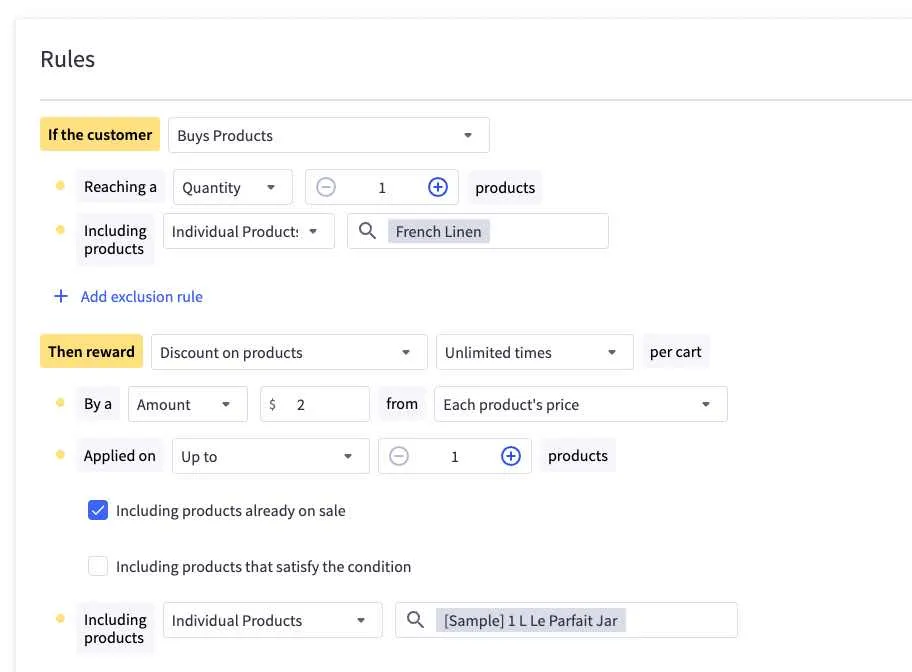
This promotion will add a discount to a product if purchased together. If you need to add a product onto a product page without discounting it, you can use the custom field bundle_. Bundles are currently limited to a set $ amount or a percentage discounted off the bundled product regardless of variation. The setup below is bundled 1:1 meaning that for every main product purchased, 1 bundled product will discounted. To set up this promotion:
- In the Promotions section, Click
+ Create ▼and selectWith advanced editor. - Name your promotion and set a Scheduled starting/end date if applicable.
- In the Rules section, select
+ Add ruleand chooseBuy one, get one freefrom the templates. - Rule configuration:
- If the customer
Buys Products*- reaching a
Quantityof1 - Including products
Individual Products[select the main product]
- reaching a
- Then Reward
Discount on products*Unlimited timesper cart- By a [
amountorpercentage] [enter the discount amount] fromEach product's price* - Applied on
Up to1products - Including products
Individual Products* [select the bundle product]
- If the customer
- Once you have the rule created, click
Add rule to Promotion. - Configure the usage limit and Targeting if necessary.
- Hit
Create promotion. - Add the bundle to the product page using the bundled product custom fields
** Need to use these options specifically*
Misc Sales + Promotions
You can use the custom fields set for promotions to add specific messages to product cards and product pages. Please see the custom fields section for more details. In order to add banners, you can drag and drop widgets that fit your needs onto the home and category pages.
Monthly Coupon Code
The monthly coupon code needs to be switched out in three places: BigCommerce marketing emails, Strapi (which connects to the confirmation page), and Drip.
BigCommerce Order Confirmation Email
To change the order confirmation email, within BigCommerce navigate to Marketing > Transactional Emails and click the three dots to edit the Order Email.
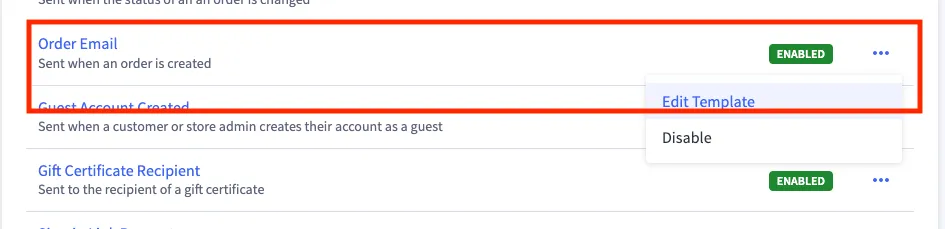
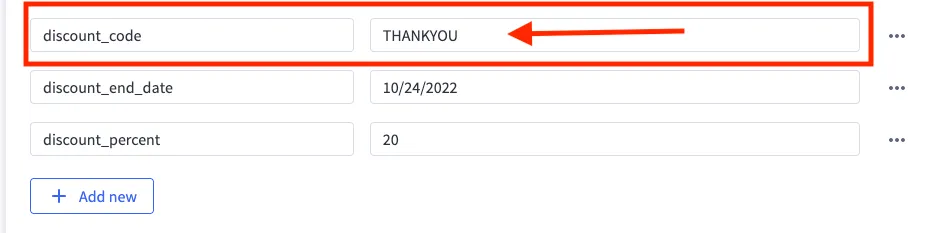
Inside the order email template, locate the Phrases tab and update the discount_code field to be the new code for the month. Remember to save your changes.
Strapi (Order Confirmation Page)
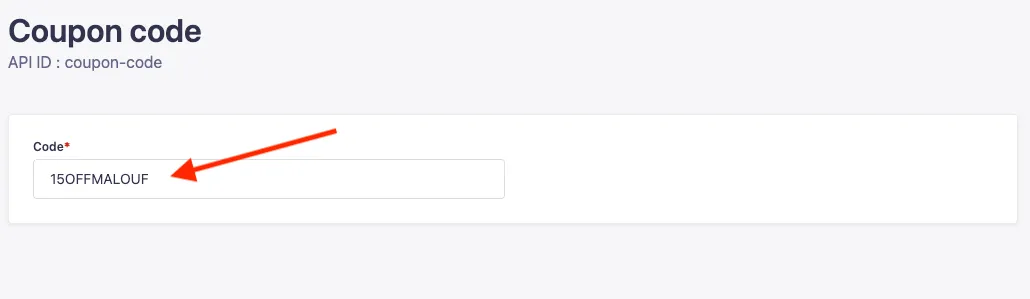
Instead of directly changing the confirmation page, we have a single-type coupon code that lives in Strapi. The order confirmation page will fetch this info and display the most recent code. To update the coupon code in Strapi, navigate to Content Manager > Single Types > Coupon Code.
Inside the coupon code, enter the new code and hit save. There will only ever be one entry for the coupon code. If we need additional codes, let use know and we can set up a collection type.
Drip
To update the coupon code in Drip, please contact Sadie Leishman.