Custom Widgets
For the page builder mode, we have created custom widgets to fit the design needs. The inputs for headings, images, and so forth can be updated easily via page builder. If you don’t see a field you need or would like a custom widget, please put in a ticket for the web team.
Nav Widgets
Since the nav is hidden unless clicked or hovered, we have created a custom page to view the widgets for each nav section (bedding, mattresses, etc). You can find each section on the page Widget Templates in page builder.
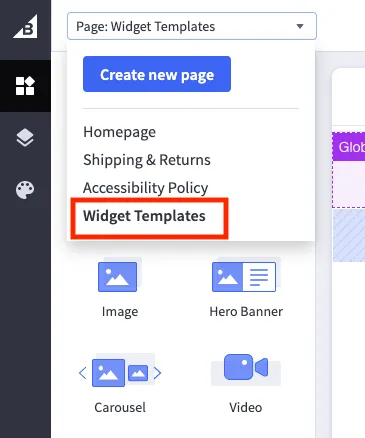
You can edit and save the widgets on this page, and they will appear the same in the main navigation menu.
Home Page Widgets
There are several custom widgets on the home page. This documentation will cover the widgets that require a little more set up, but if you have any other questions please reach out to the web department.
Home Hero
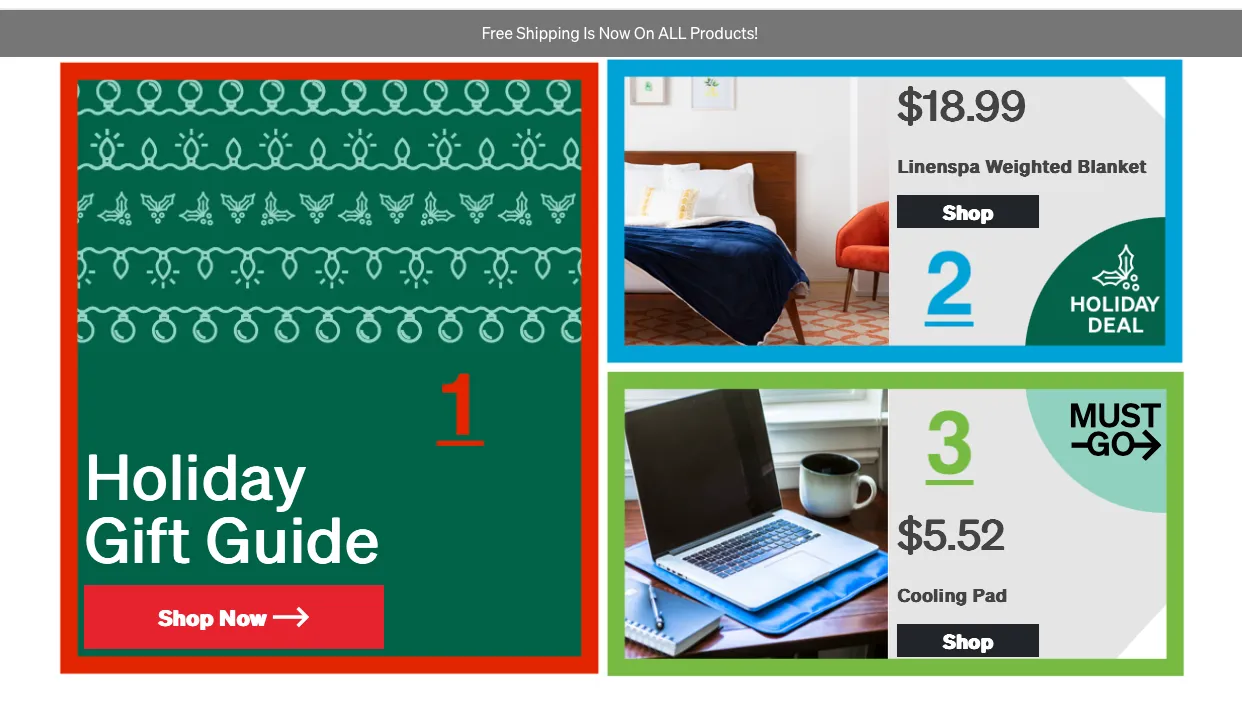
The home hero has 3 main content sections (outlined below). Most of these settings are straightforward, but there is some setup for products in section 2 and 3 that you should pay close attention to.
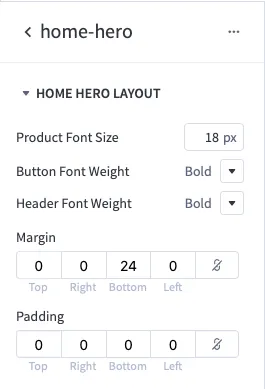
Layout Settings (settings for the whole widget)
The Layout section specifies style settings for the entire widget (all three sections). The font sizes will adjust pieces of the hero in all sections. The margins and padding will adjust the space that surrounds the entire home hero widget.
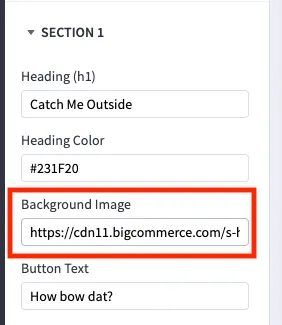
Section 1 settings
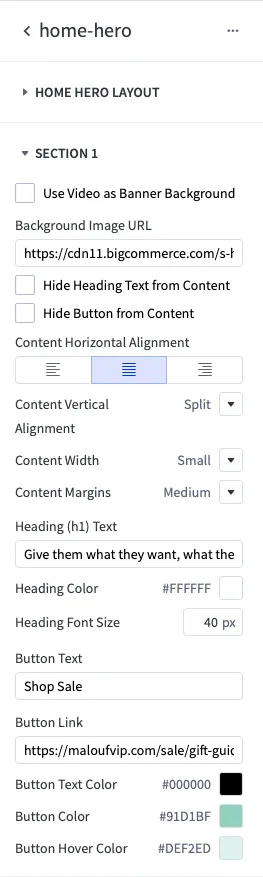
Section 1 contains settings for the main graphic/image section that usually includes text and a button. This section will highlight and link to a particular category page. The category page should be linked in the “Button Link” field. The rest of the settings in this section can be used to modify the style of the background, text, and button content.
Using a Background Video
If you’d like to add a video in place of the background image, please submit a ticket to the dev team ahead of time so we can upload the video to our server. Once there, we will provide a URL for the video that you can use in this section:
- check the “Use Video as Banner Background” checkbox
- enter the URL that we provided in the “Video URL”
- adjust the content layout as needed (a drop shadow will be applied to these when the video option is selected so that they will be more readable)
Section 2 and Section 3 settings
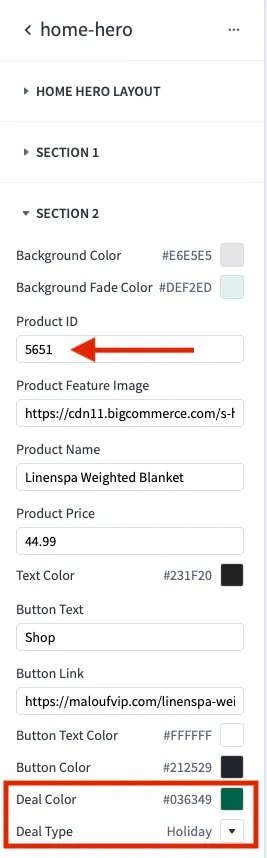
Sections 2 and 3 highlight specific products. In order to check the product price against the different prices lists (set up for customer groups) this widget requires a product ID be input. The image below has an arrow pointing out the product ID. A product price input field can be used as well in order to make sure a price will always be displayed. You will need to add product IDs to both section 1 and section 2.
You can find more about product ids here.
Daily Deal Badge
We can switch the daily deal badge out for a “Holiday” deal badge as needed. To switch to a holiday badge, change the “Deal Type” (highlighted in the image below) to “Holiday” and switch the deal color to #036349.
Sales Bracket Widget
On a category page (e.g. https://maloufvip.com/sale/), drag and drop the “sales-bracket” widget onto the page in page builder. You can drop it into the “Drop widgets here” region that is directly above the rest of the products on the page. In the settings for the widget, add the IDs for the products you’d like to feature separated by commas:
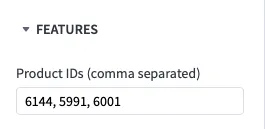
You can change the title of the bracket and the color of the text in the title in these settings as well.
If you’d like to add another bracket category, just drag and drop another sales-bracket widget onto the page in the same region.
Image Paths
For images you can upload to the BigCommerce store and copy the link into the widget input. The image uploader can be found in the Storefront > Image Manager.
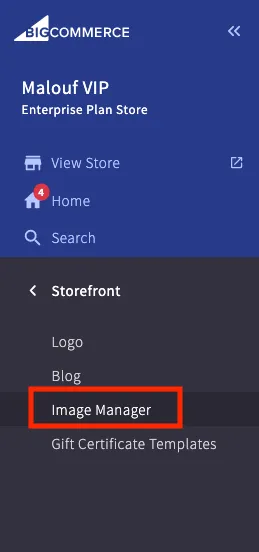
To copy the link, click the View Full Size text under the image.
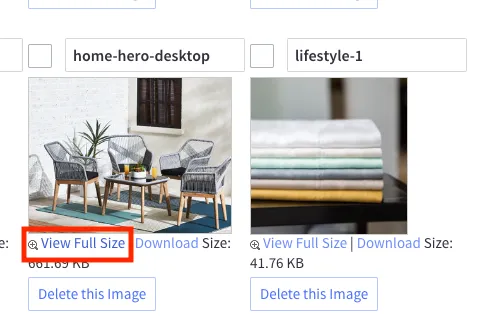
This will open a new browser tab with the image. Copy the path in the browser window. You will then directly copy this path into the widget input in page builder.