Scheduling Updates
Using the Atom8 Automation app, content and product updates can be pre-scheduled. There are various workflows that can be easily created.
Theme Switching
In order to schedule changes to the home page content or other widgets, you can create a theme switch workflow. Please follow the steps below.
- Before you start making updates, first clone the current theme. Go to Channel Manager > Edit Settings > Themes.
- On the current theme, select the “Advanced” dropdown and click “Make a Copy”.
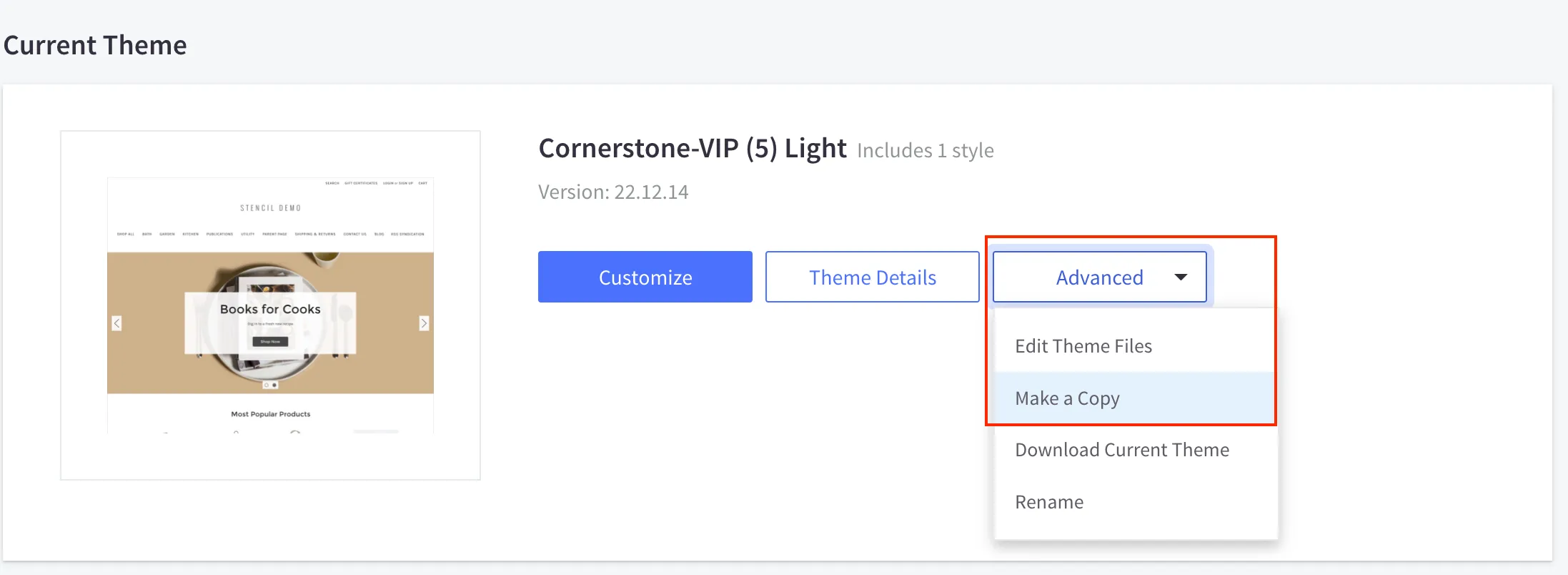
- Once the duplicate theme is done being copied, feel free to make changes to the copy version. Save the changes, but do not make the theme live.
- Navigate to the Atom8 Automation app and search the library tab for the “Schedule theme switching” template. Create a new workflow from that template.
- After setting the trigger time, select the theme you recently copied as the theme you would like to switch to.
- You can have the theme switch back to the previous live theme, or continue with the copied theme.