Product Filters
BigCommerce makes it fairly easy to create custom filters. Any product option (size, color, fabric…) or custom field will automatically create a new filter for products. These can be turned on or off in the admin at a store-level (all categories), or at a category level.
To learn more about product filtering or if you are unfamiliar with the content system, please read the BigCommerce documentation.
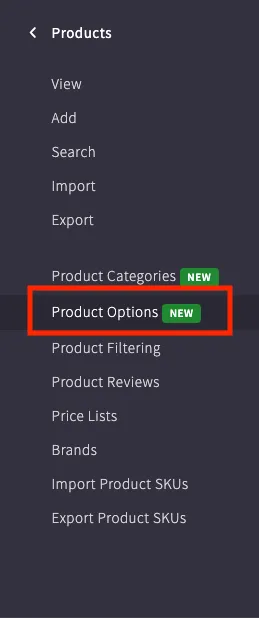
Filters live in the product section of the admin.
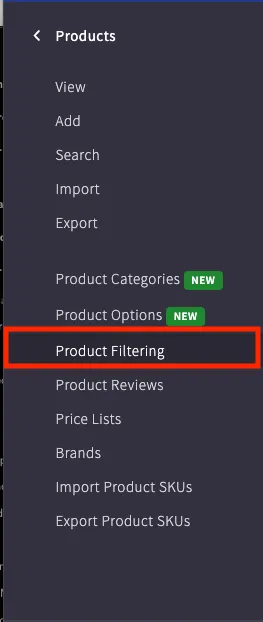
Custom Filters
For custom fields, you will need to add this on each individual product that you want to appear in the filter group. If you are not sure how to set up custom fields, please checkout this how-to article.
For unique filters like protection level or material, custom fields would be an ideal solution. Just be warned that this will require a little digital footwork as you set up the custom field on each product.
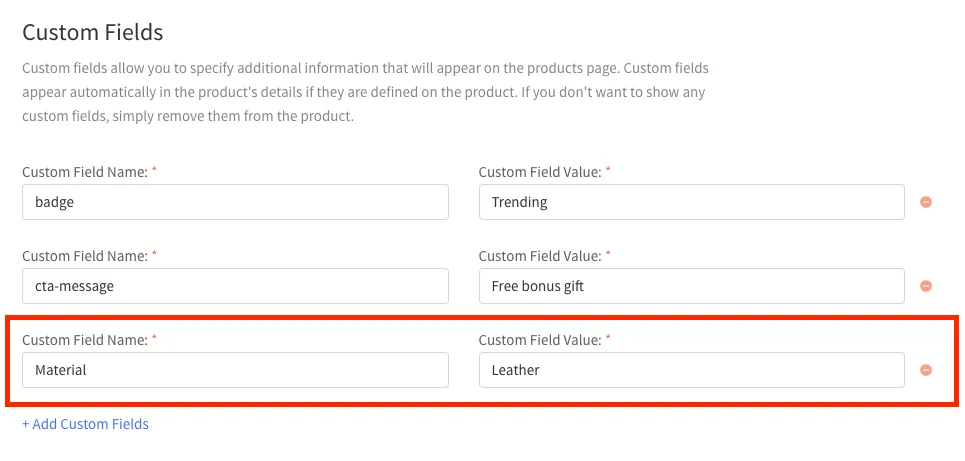
Once a custom field has been added to a product, it will appear in the product filter section. The filter will only display as a custom option when checked in the admin.

Product Options
When a product has options like size or color, those will automatically create a new filter in the BigCommerce admin. In the product section of the menu you can add shared options for easy assignment to products. Size is a good example of a shared option because mattresses and sheets will usually have the same standard options such as twin, twin xl, full, and so forth. If you find yourself making a product option several times, consider adding it as a shared option in the admin.