Assembly Videos
The assembly videos and instruction manual downloads live on the assembly page. The page has two main widgets, one for assembly categories where each section is listed (sleep systems, mattresses, etc) and a widget for the video play sections. Below you will find directions on how to update both.
Assembly Categories
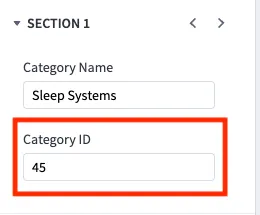
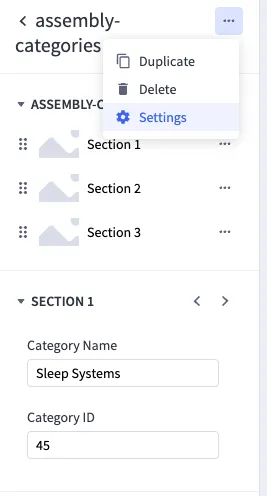
For the category list, you will need to use the assembly-categories widget. It should already be available to you on the page, so you can simply click on it and add new list items as needed with the “plus” sign. In order to add a new category, please refer to the BigCommerce category id for the Category ID input.
Category IDs can be found in the URL on the category page, similar to Product IDs.
Any other settings, such as title and margin can be found by clicking on the three dots in the upper right of the widget and clicking on “settings”.
Assembly Videos
Each category item will need the corresponding widget assembly-videos. This widget will be used per section. So if you have 3 categories, you will have 3 assembly-videos widgets on the page.
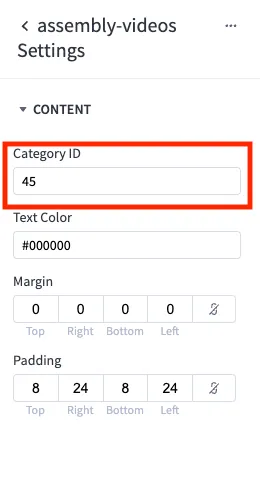
When first adding the widget, you will need to make sure that the category id inside settings is accurate and matches the one being set for the category item.
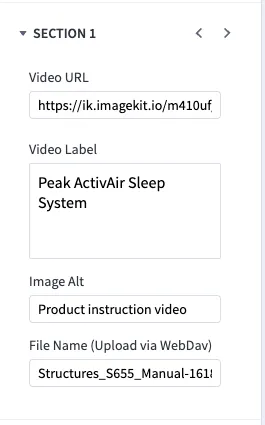
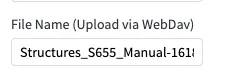
Within the main view of the widget, you will see the “plus” sign where you can add additional videos. Each tab will have a place for the video url, the label, alt text, and the file name.
Video URL
Due to limitations in BigCommerce, the video will need to be uploaded via Strapi (the CMS we use for additional product page content and compare features). If you do not have a login, please contact the web team. Once inside Strapi, locate the Media Library in the left menu and add new assets.
Copy the link and added it to the page builder input for video url back in BigCommerce.

Instruction Downloads
In order to add instruction downloads, you will need to access the BigCommerce webdav. You can find your webDAV connection settings in the main BigCommerce menu by going to Settings > File access (WebDAV). Once you have accessed the wedDAV, you will need to go into the content > assembly folder.
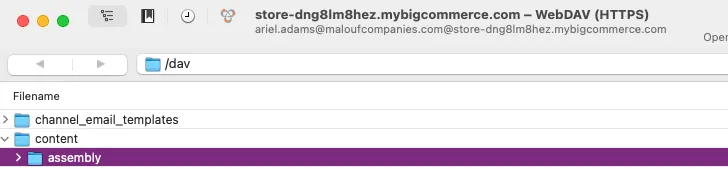
Inside the assembly folder, you will then upload the files by right clicking and selecting upload.

Once a file has been uploaded, all you need is the file name for the input within page builder. For example, Structures_S655_Manual-1618761089.pdf will connect to the current file in webDAV without any other URL info.
Save and publish within page builder when you are ready for your changes to go live.