FAQ
Page settings
Where to find page settings
-
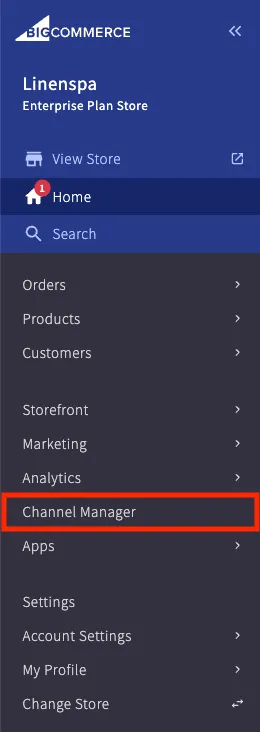
Click ‘channel manager’
-
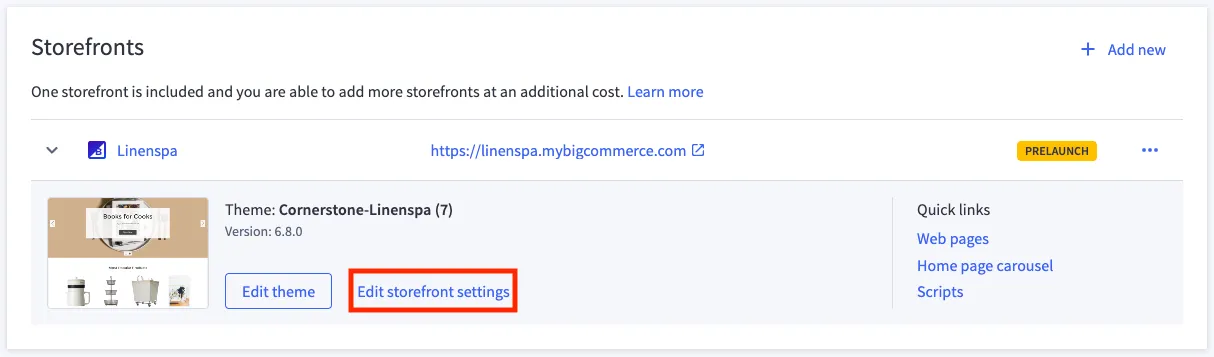
Click ‘Edit storefront settings’
-
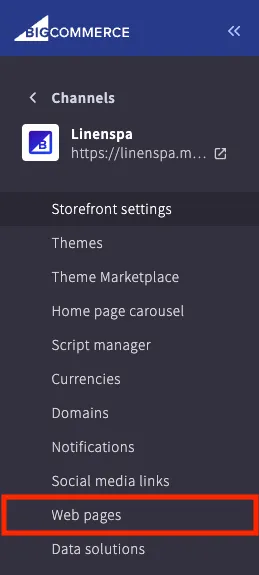
Click ‘Web pages’
-
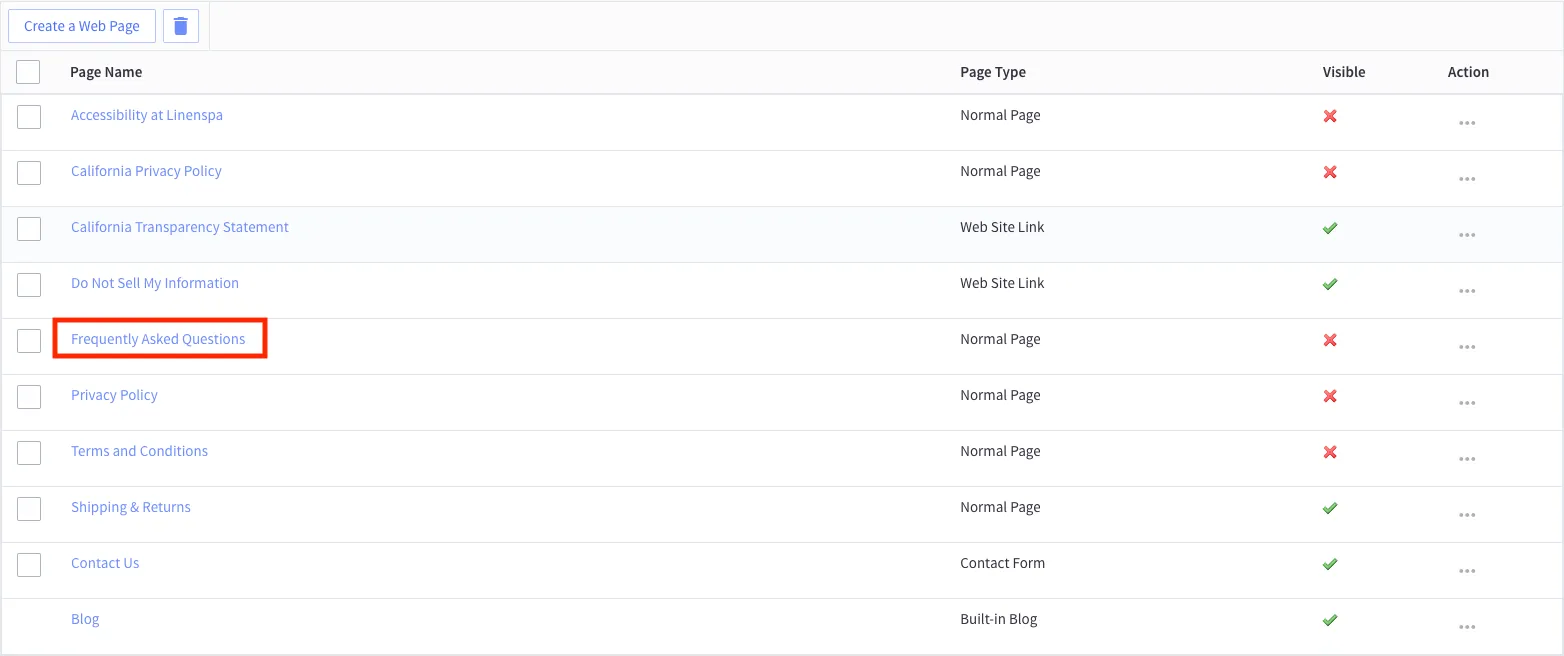
Click on ‘Frequently Asked Questions’ option from list of web pages
Available Settings
- Page Name (Shows up as the main header on the page)
- Page URL
- Page Title
- Meta Keywords
- Meta Description
- Search Keywords
Page content
This content is managed through BigCommerce’s Page Builder and a custom widget.
Page content on Page Builder
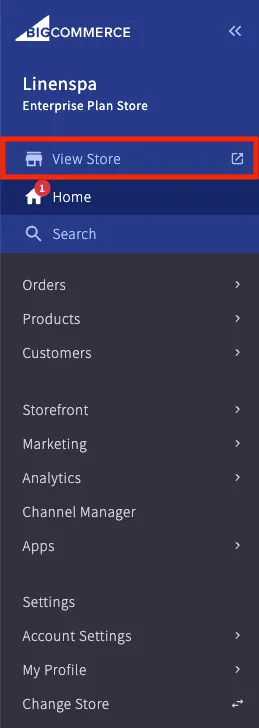
- Click on ‘View Store’
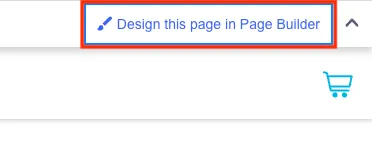
- Click on ‘Design this page with Page Puilder’ (top-right corner)
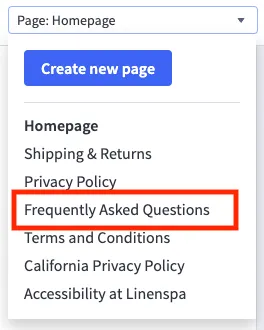
- Select “Frequently Asked Questions” (top-left corner)
Edit page content
To start, click on the section you want to edit in the page preview.
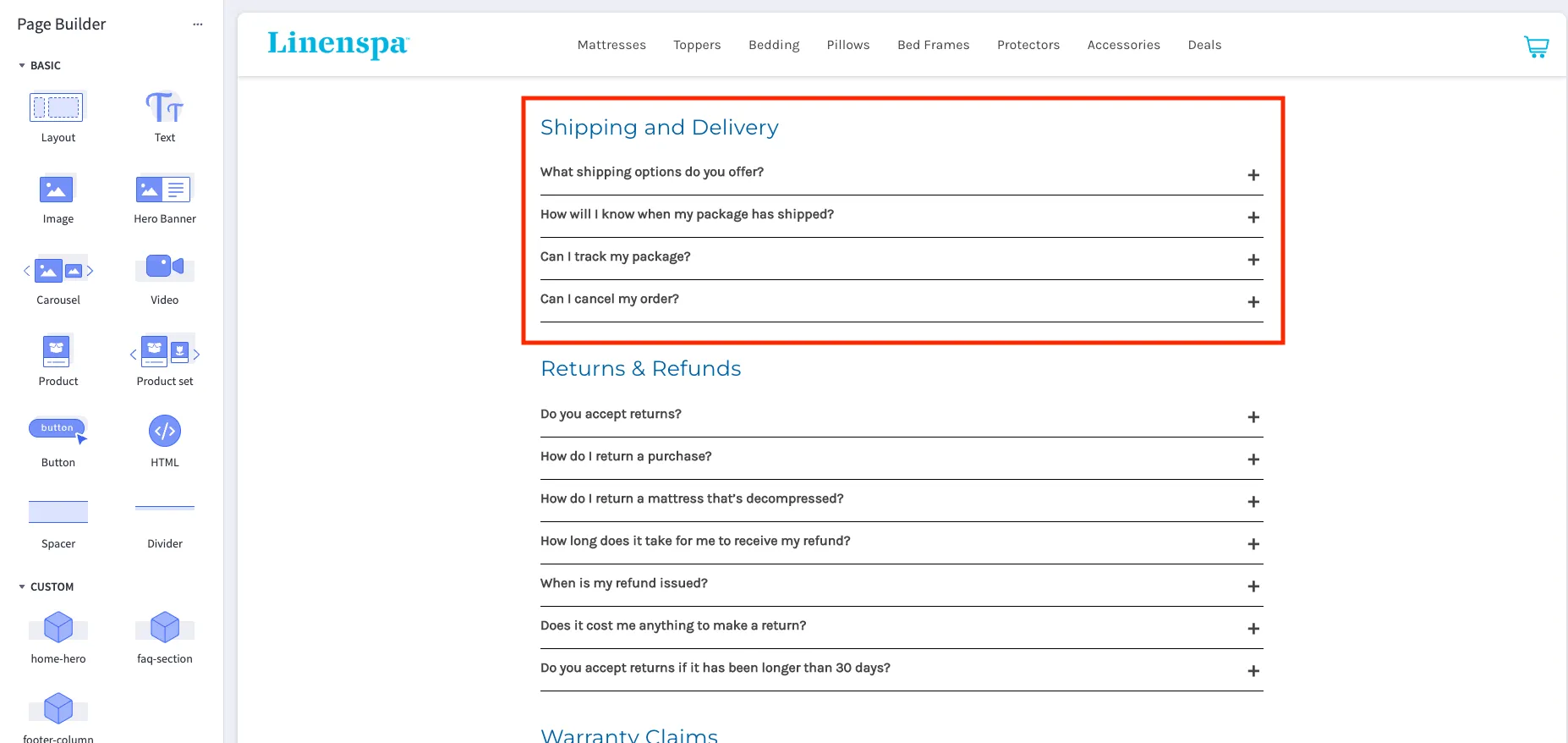
Edit Section Header
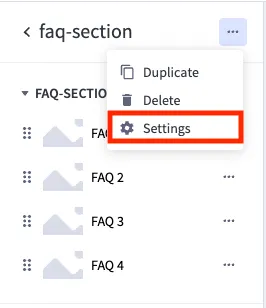
- Select ‘settings’ from the widget settings menu.
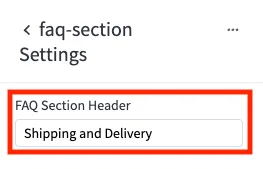
- Edit content of FAQ Section Header with provided input field
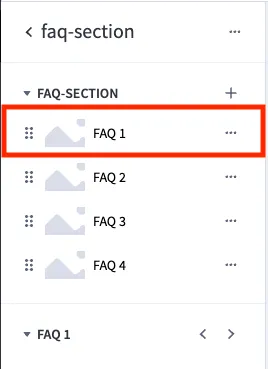
Edit Question Content
- To edit a question’s content, select the question you wish to edit on the widget’s content menu.
- Edit question value and answer value with provided input fields.
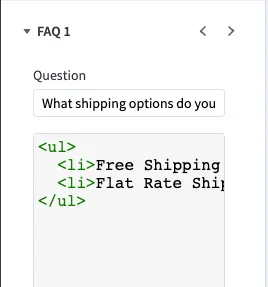
Note - Because Answer field is a ‘code’ or html field. It can be helpful to expand the HTML editor for easier reading/editing
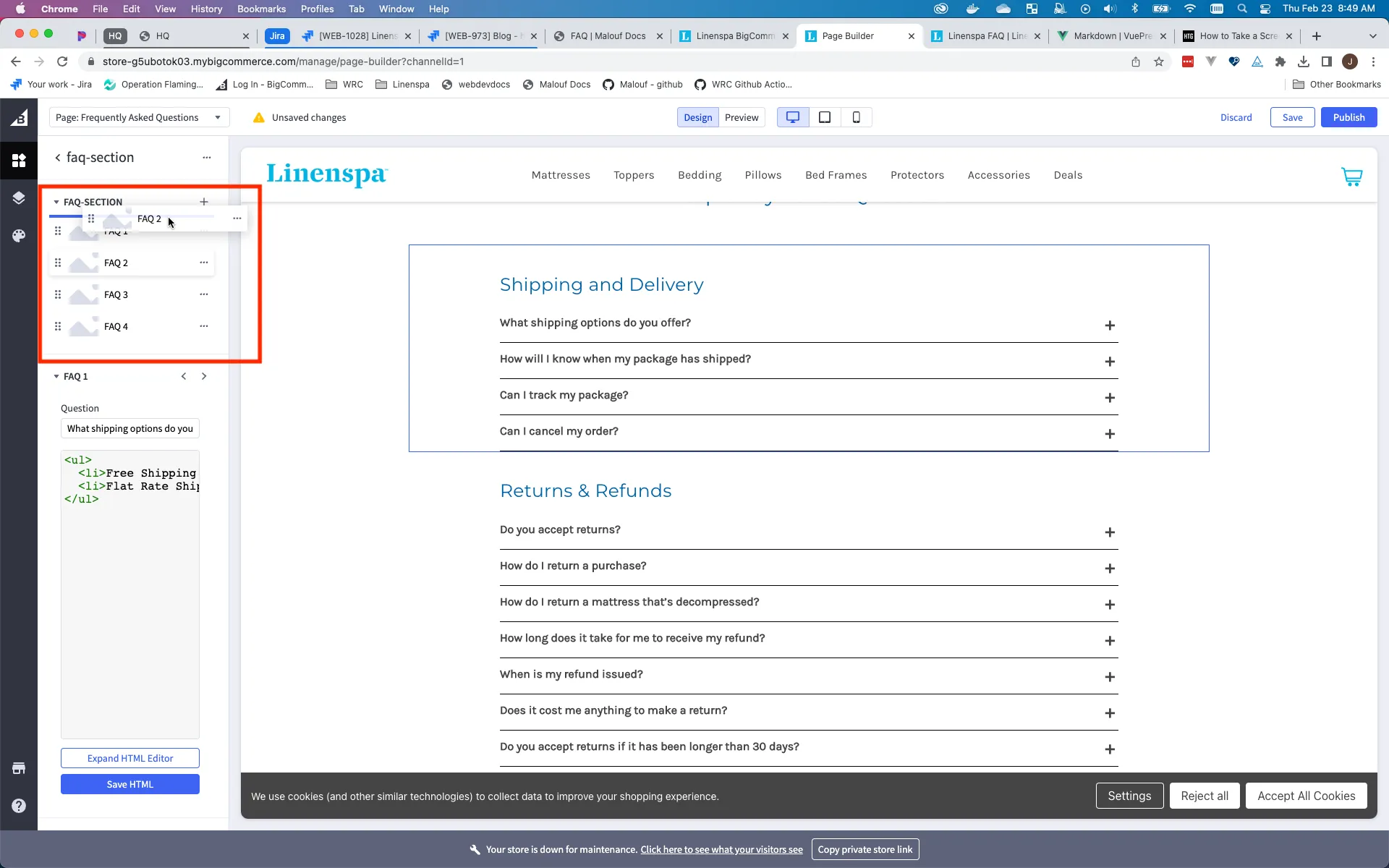
Change the order of Question Content
Questions in a section
Drag and drop the question to new position.
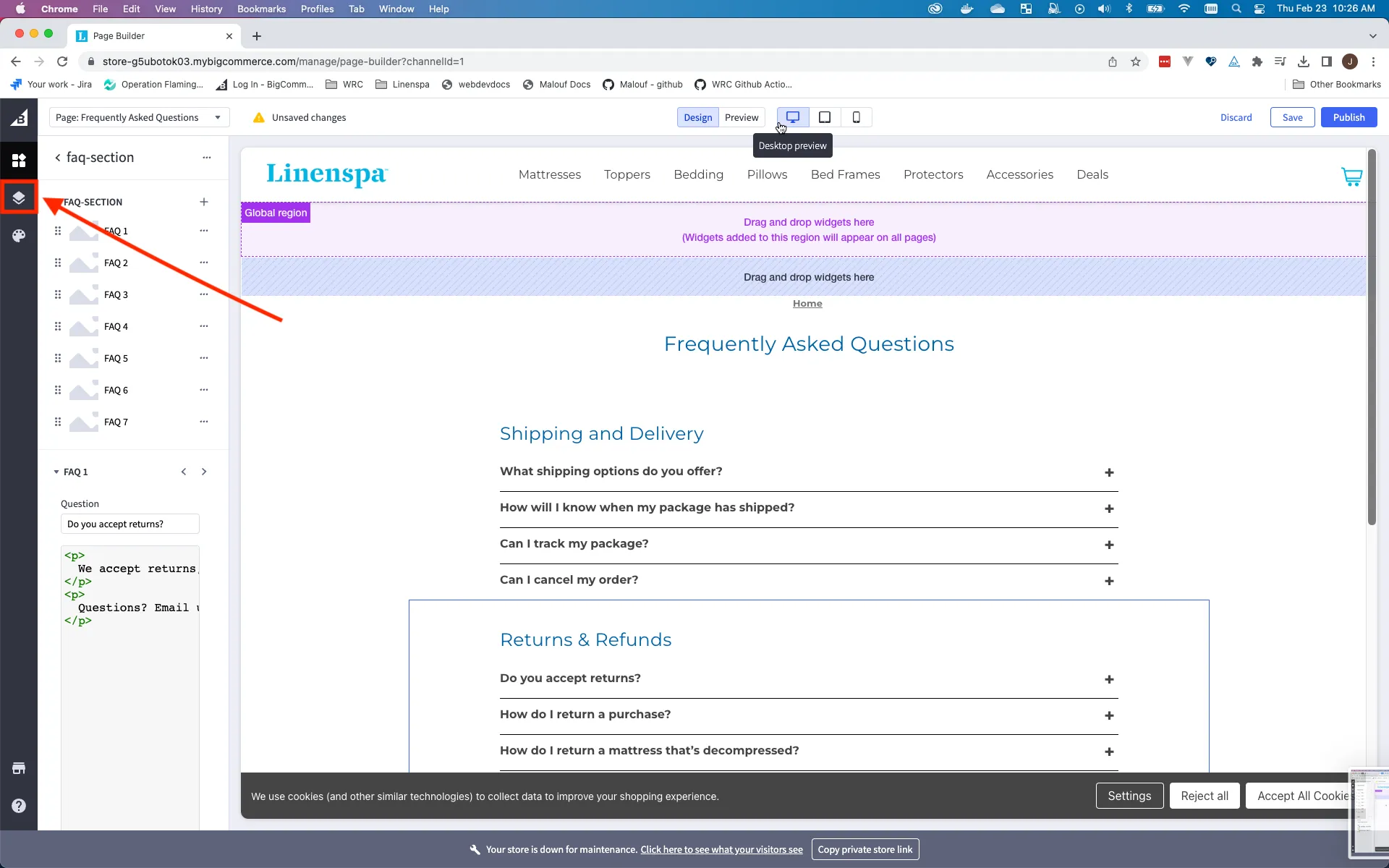
Sections on the page
-
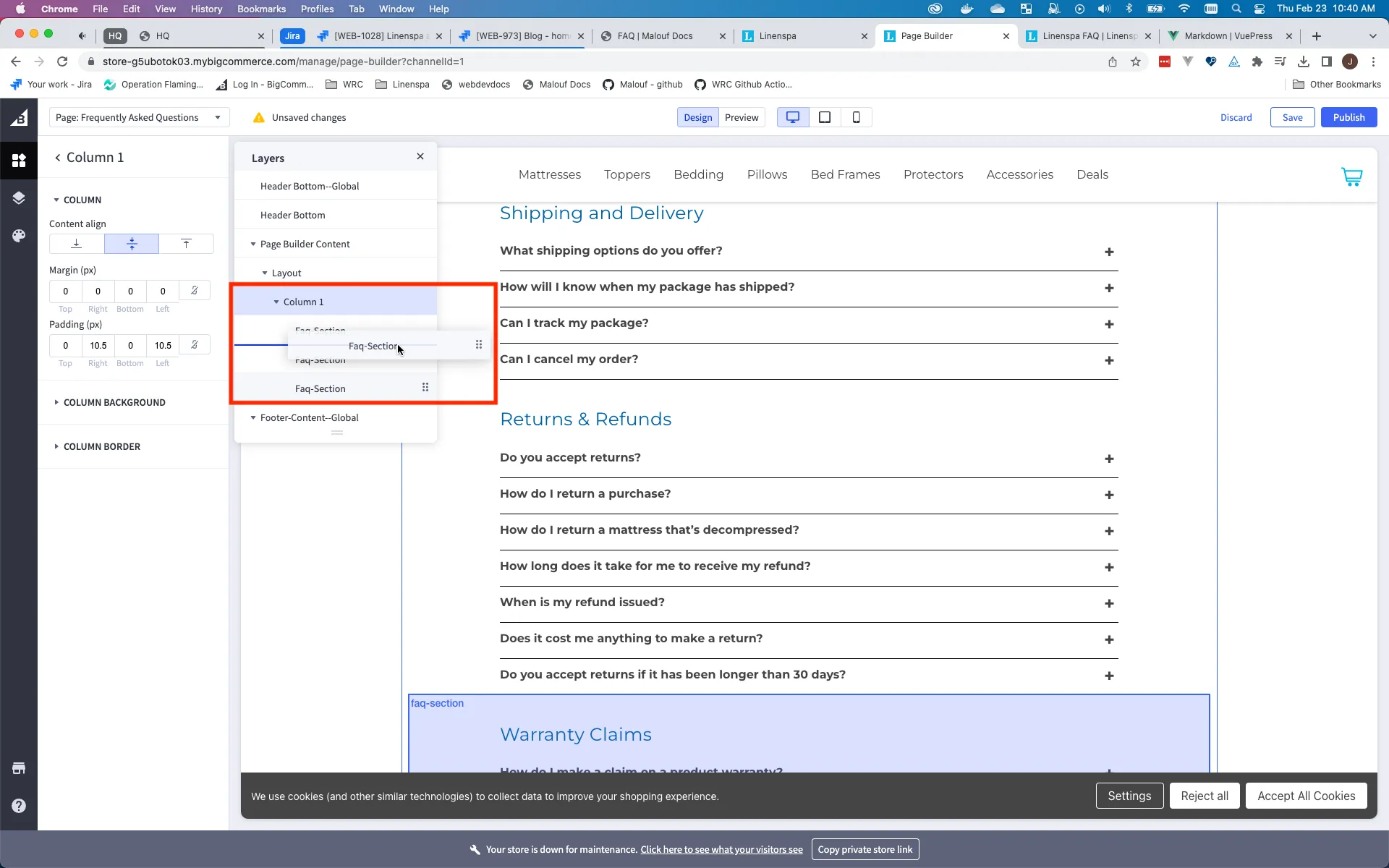
Start by clicking the ‘Layers menu’ icon.
-
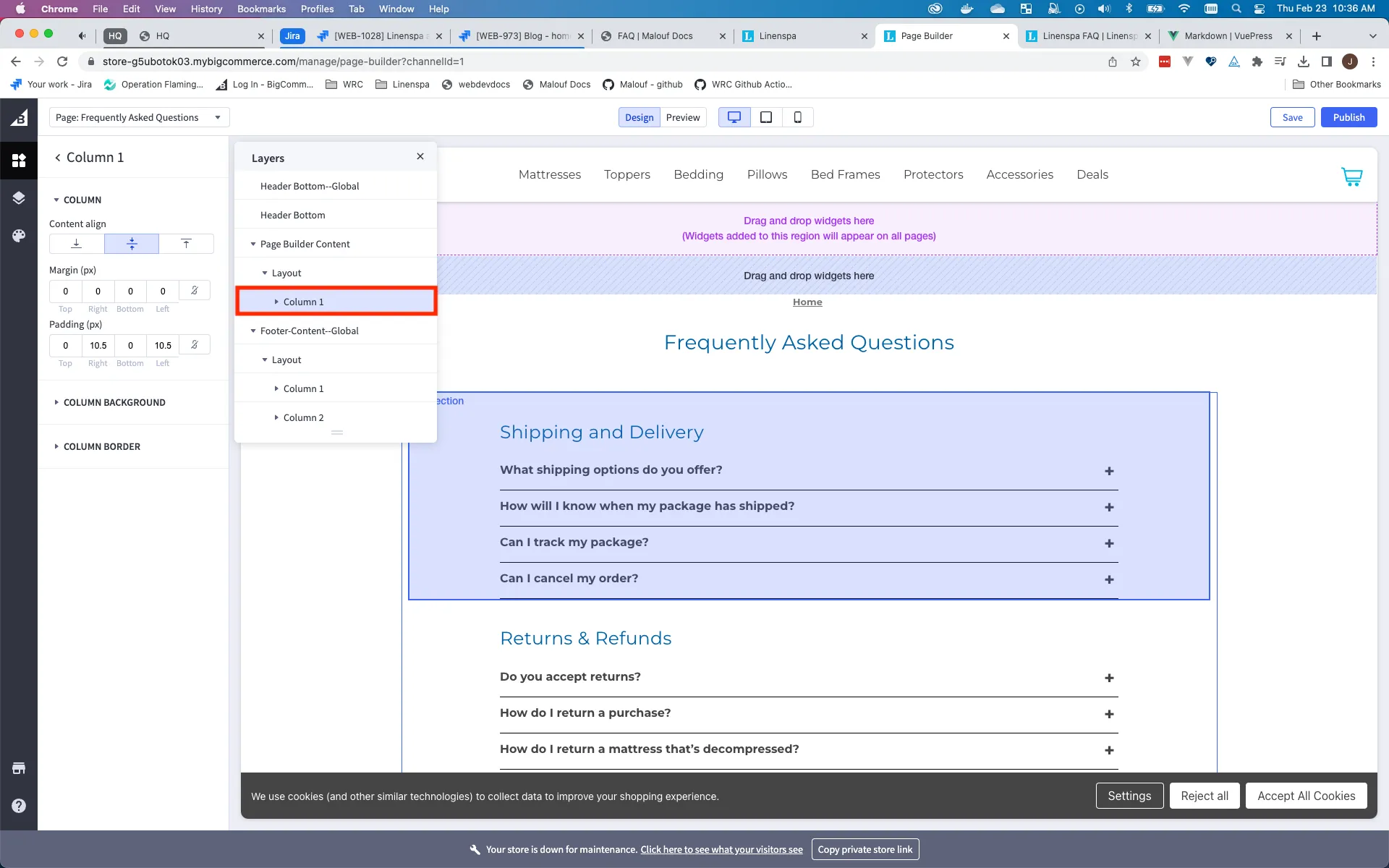
Click column in layout to expand
-
Then drag and drop sections above and below each other as desired.
Create New Question Content
Put in New FAQ Section
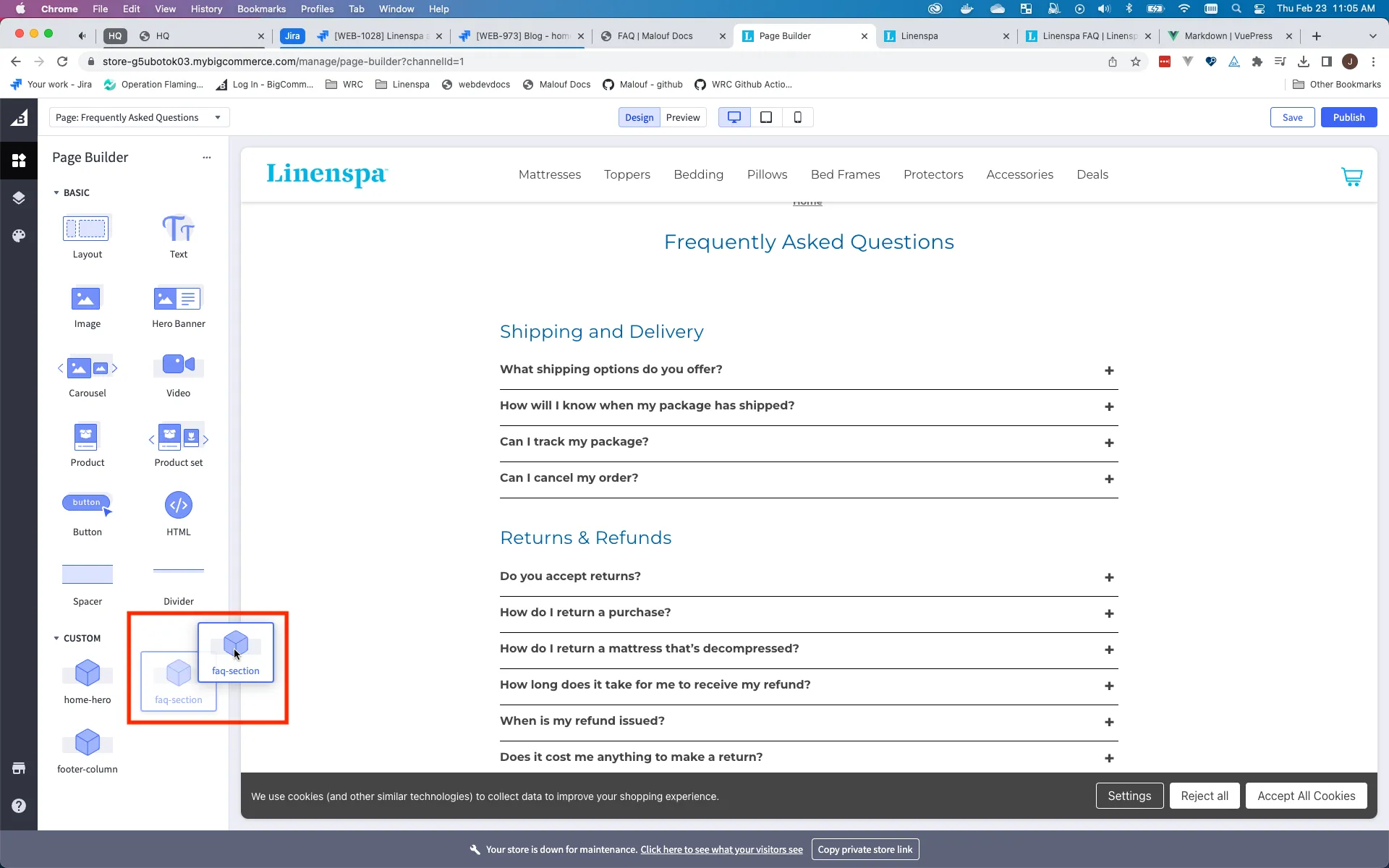
Drag and drop faq-section custom widget from the widget menu to where you want it on the page.
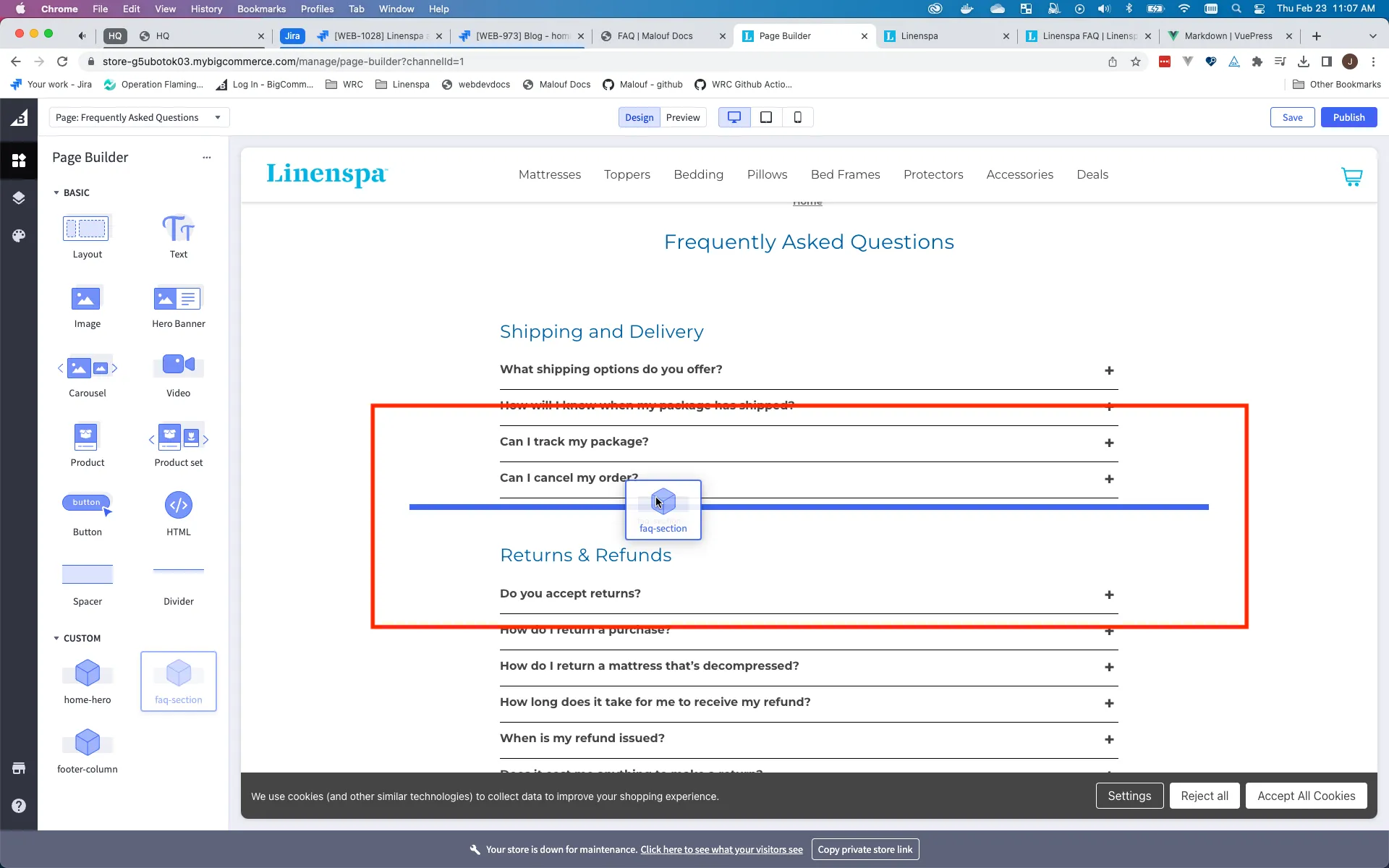
Note - When adding new sections to the top or bottom, if dropped too high or too low (above the top or below the bottom) relative to other faq sections, the new section placement will trigger the creation of a new layout and column (which you probably don’t want). If this happens, the new section can be easily moved to the right layout/column/position with the layers menu.
Below are instructions how to delete the unwanted/accidentally added layout.
Delete an unwanted/accidentally added layouts
-
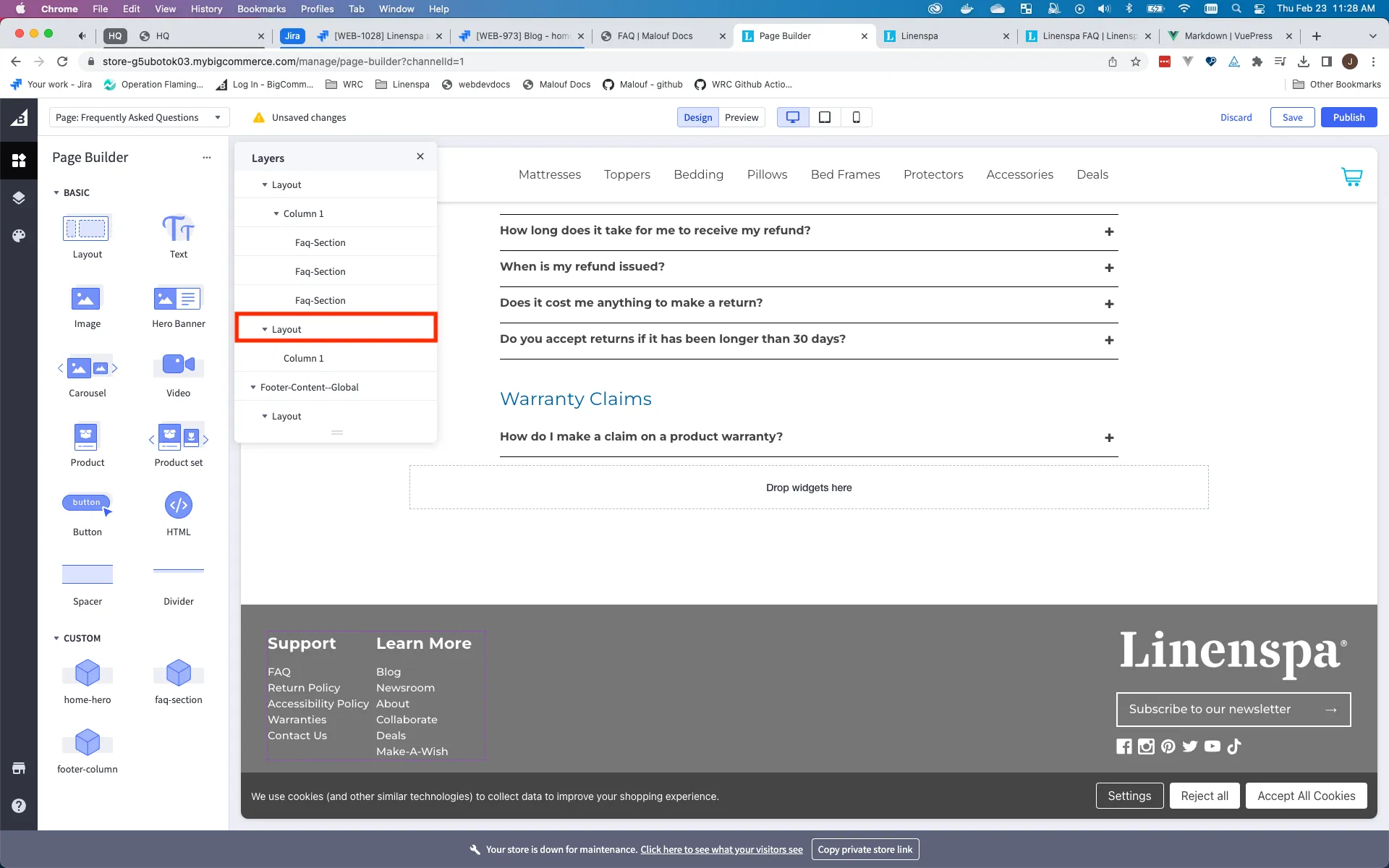
Select the layout on the layers menu (it should be found in the ‘Page Builder Content’ section of the layout)
-
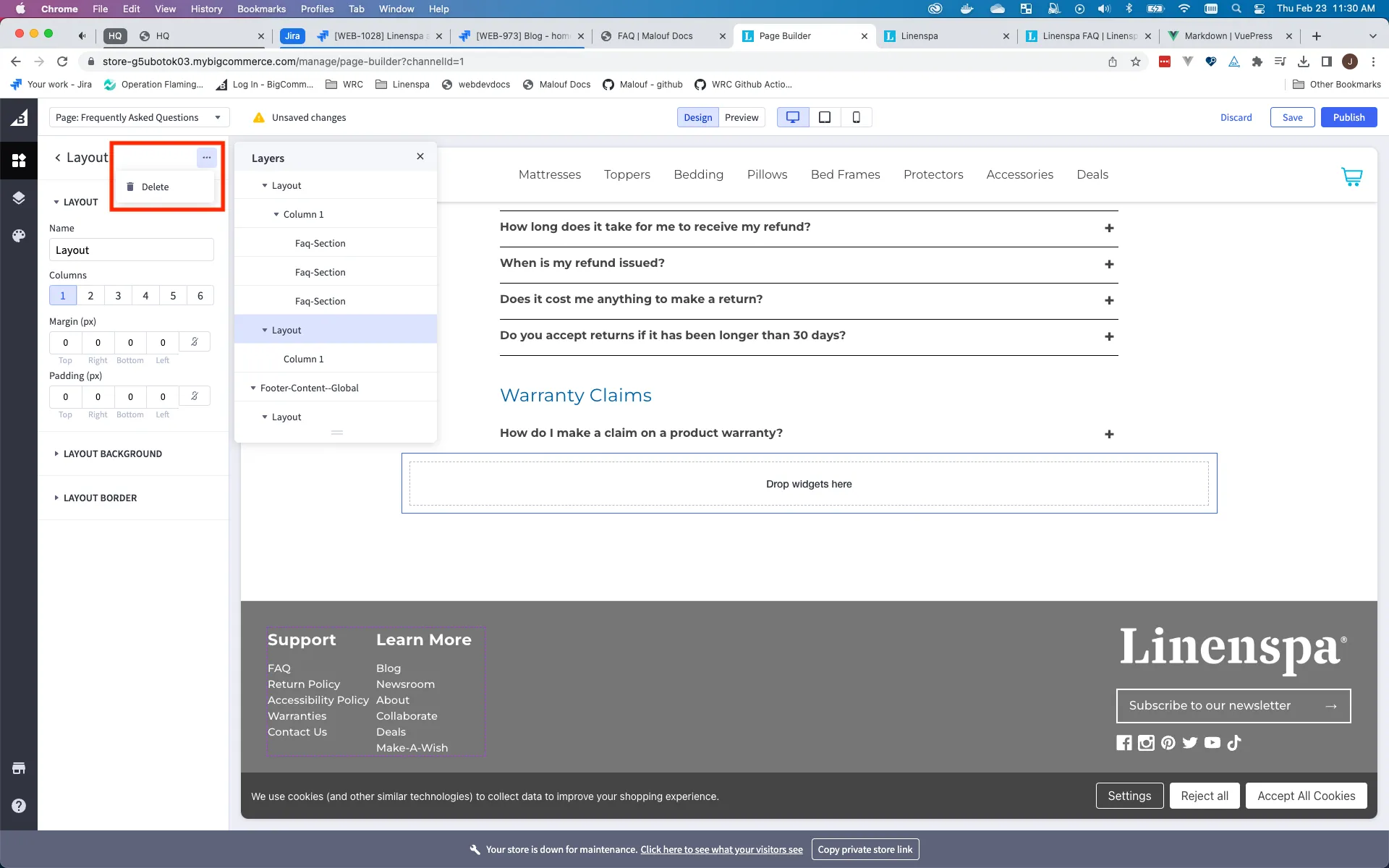
Use the three dots menu to delete the layout