ESF Newsroom
How-to’s and guides for using and maintaining the Elizabeth Smart Foundation Newsroom. Feel free to message me (Austin Jones) if you need any additional help or need a new guide!
Access the Newsroom
First off, to be able to change anything, you’ll need to know where the Newsroom is in Squarespace’s online editor.
- Log In to Squarespace
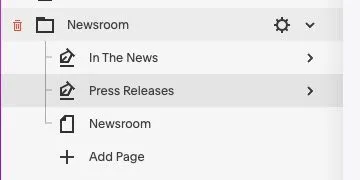
- Go to Pages in the menu
- Below “NOT LINKED”, You’ll find the Newsroom Folder in the list of files
Create a new post
Duplicate the template
- Inside the Newsroom Folder, select either In the News or Press Releases
- Newsroom should auto poplulate with the 3 most recent blogs or favorited posts
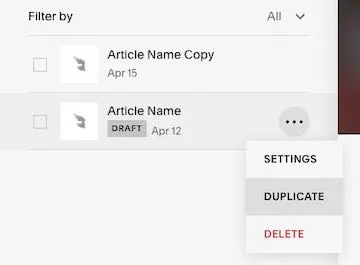
- Navigate to the template post
- Labled “Article Name”
- Will have the tag
DRAFTnext to it’s date
- Hover over the post and select the “more” symbol
- ◦◦◦ (symbol with the 3 dots)
- Will remain invisible until you hover your cursor over the post
- From this list, select Duplicate
Editing it’s content
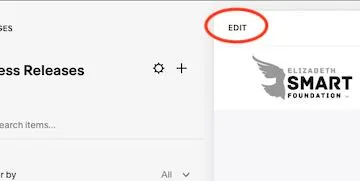
1. In the Page Window, select the EDIT button
2. Things to change on the main EDIT page
- The Title
- Simply click on the text box with the title and replace it with the new one
- This will replace ALL instances of the title for the post
- The Main Image
- Single Click on the image (or Double click and skip the next step)
- Select the “pen” icon ✎
- In the new popup, choose REPLACE
- ⤒ Upload the new Image
- If you have already used this image, you may select it from the library by choosing SELECT FROM LIBRARY
- The Main Content
- To replace the main text content of the post, simply select it’s text box and replace the text.
3. Changing the METADATA
-
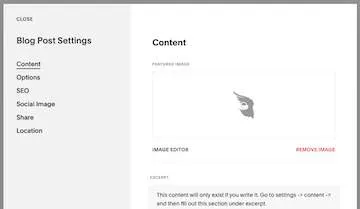
Double Click the date / category under the title
-
Under Content
- Change the Preview Image
- Select REMOVE
- ⤒ Upload the new Image
- Update the Excerpt
Caution!This will not Automatically be parsed from the main text so you will have to create the brief yourself and place it here. :::
- Under Content
- Change the URL of the post
- Change the Author of the post (this is not shown)
- Under Options
- Here you can change the Status to
PUBLISHED,SCHEDULED, orDRAFT
- Here you can change the Status to
- Under SEO
- Here is where you change the title and Description shown in search engines
- Under Social Image
- You may add an image to be used for social sharing links (Defaults to ESF Logo)
- Change the Preview Image
Publishing a new post
- Select DONE from the top-left Corner if still in EDIT mode
- The “more” symbol on the new post if back in the main page ( ◦◦◦ symbol ) and selecting Settings then Options
- You may choose Either:
PUBLISHto push the post live now.SCHEDULEthe post for a later dateSAVEthe changes you’ve made without publishingEXITto discard all the changes you’ve made
FAQ
How do I change the date of the post?
If the post isn’t published:
- You can choose the date during the publishing process.
- You will be given the choice right after selecting
PUBLISH
If the post is published:
- In the Options menu in settings, Select status, then published
- Enter a new date for the post and save :::