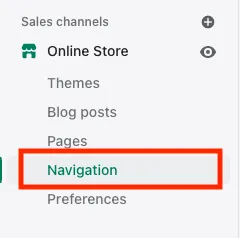
Navigation Details
Please follow the guide below to update or add navigation items. This guide will only pertain to the Shopify version of the site.
Main Menu
In order to add associated images to the desktop main menu drop down, you will need to do the following:
Step 1: Create png with menu name
Make sure to name the image starting with the parent category followed by -nav. For example, the Living dropdown would have the associated image named: living-nav.png, and the Bedroom parent category would have the image bedroom-nav.png.
Step 2: Upload image
To upload the image, navigate to the theme editor and click “edit code”.
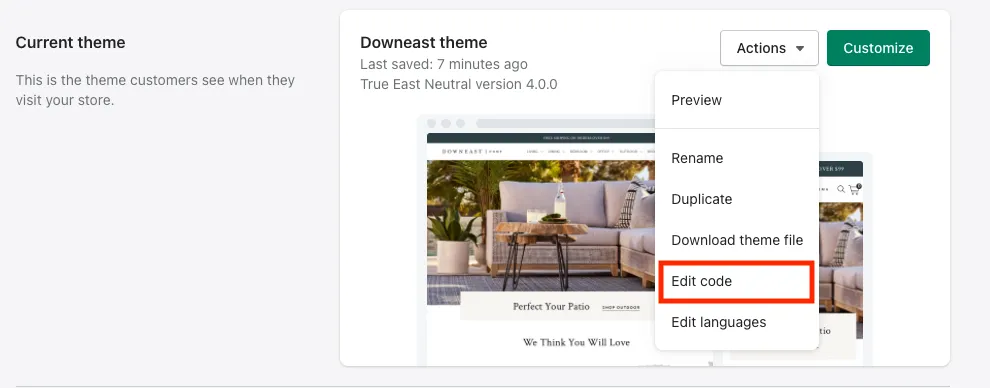
Once within the Shopify code editor, locate the Assets folder on the left sidebar. There you will upload the image file.

Category Landing Page Menu
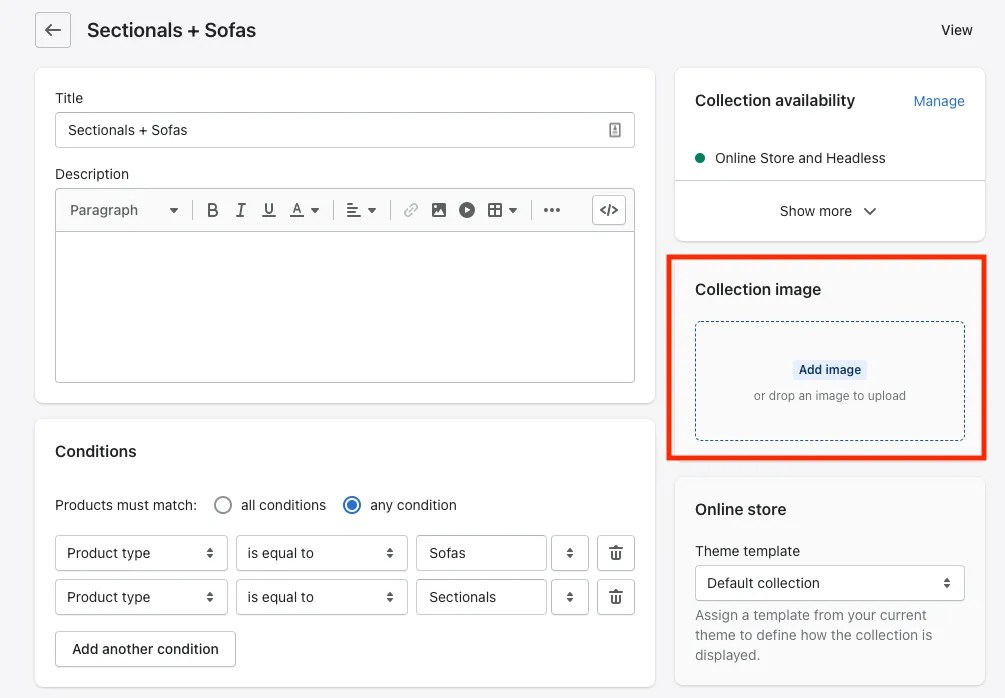
You can update the images featured on the category landing page in the collections section of the admin.
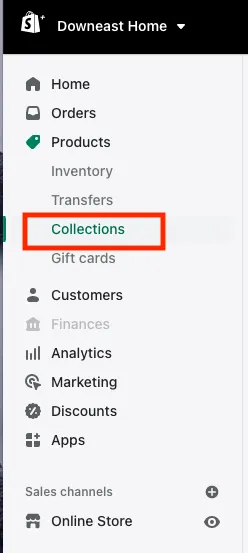
Please upload the product image you wish to feature for that collection and save. If no image is specified, the default image will be the first product listed in the category.
Footer Menu
All other menus can be updated through the Navigation tab on the left sidebar.